Commissioning the Light Tag
To commission the Light Tag, open the Productivity Cloud App (for installation, see Productivity Cloud App) and connect the NIMMSTA Smart Watch HS 50 to the app.

|
Make sure that you are using the Productivity Cloud App rather than the NIMMSTA App. Using the NIMMSTA App restricts the available functions. |
Then open the menu by selecting the "More" button at the bottom right. In the "More" menu, select the "Light Tag" section.
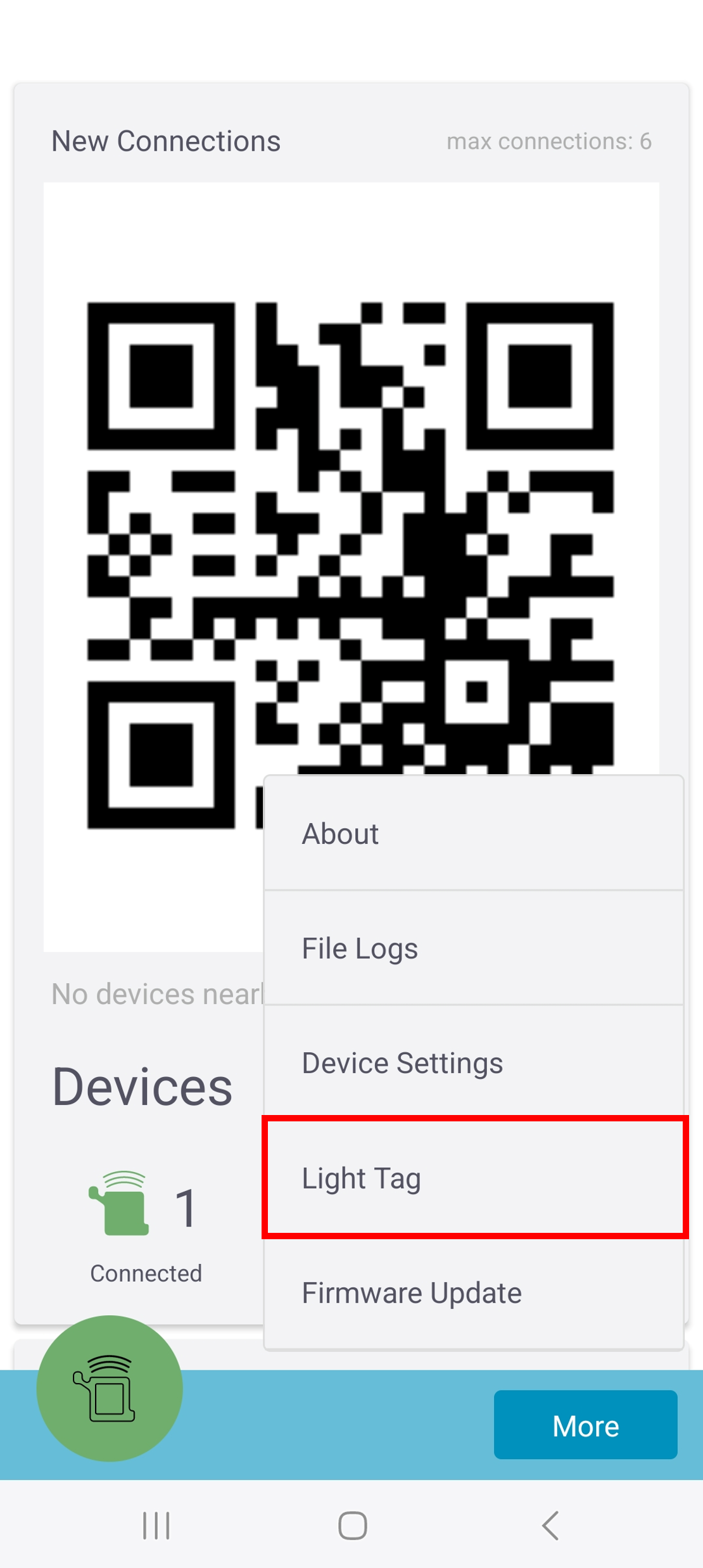
A menu with several options is then displayed. The display of the connected Smart Watch HS 50 also changes.
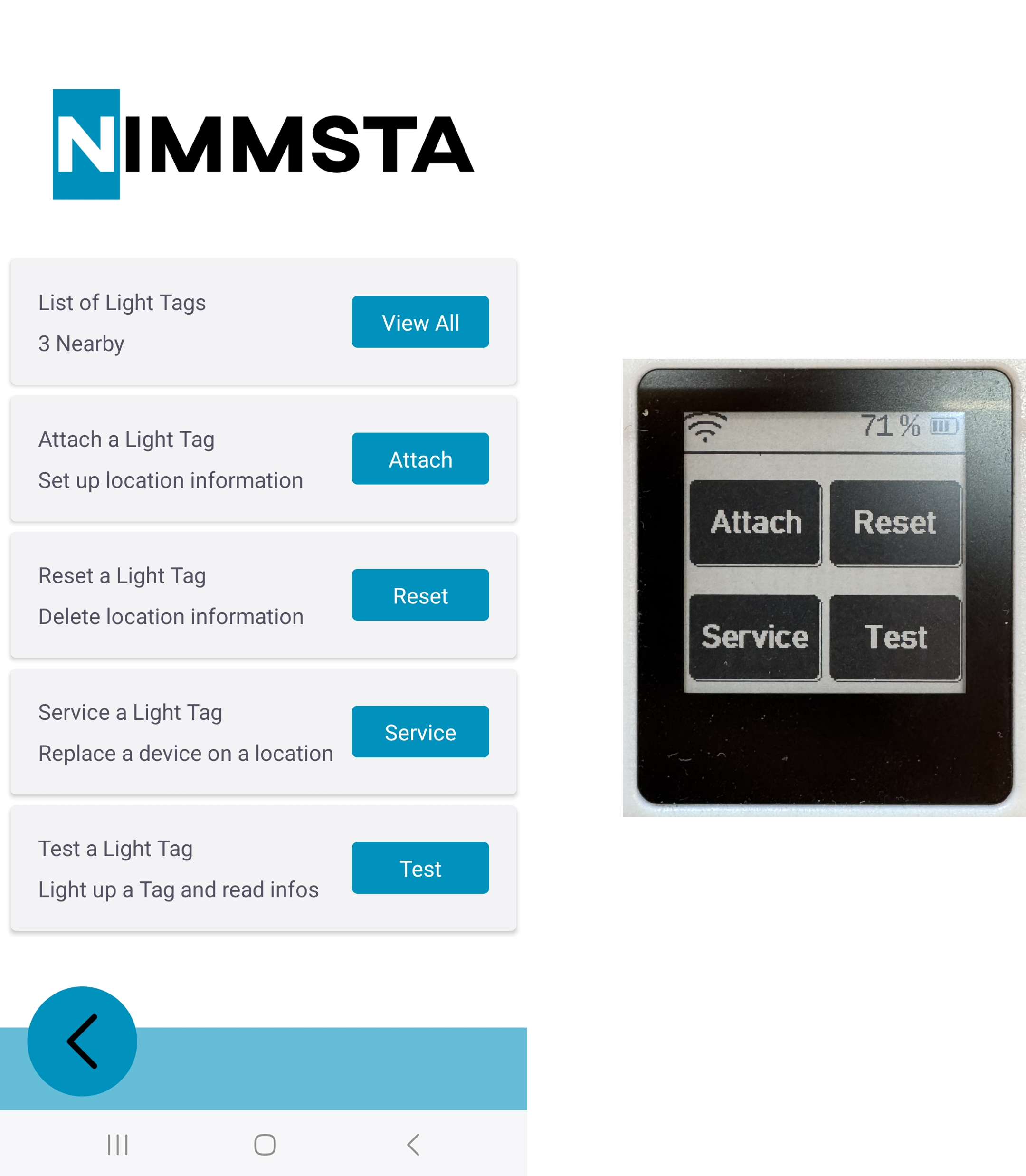
"List of Light Tags" menu
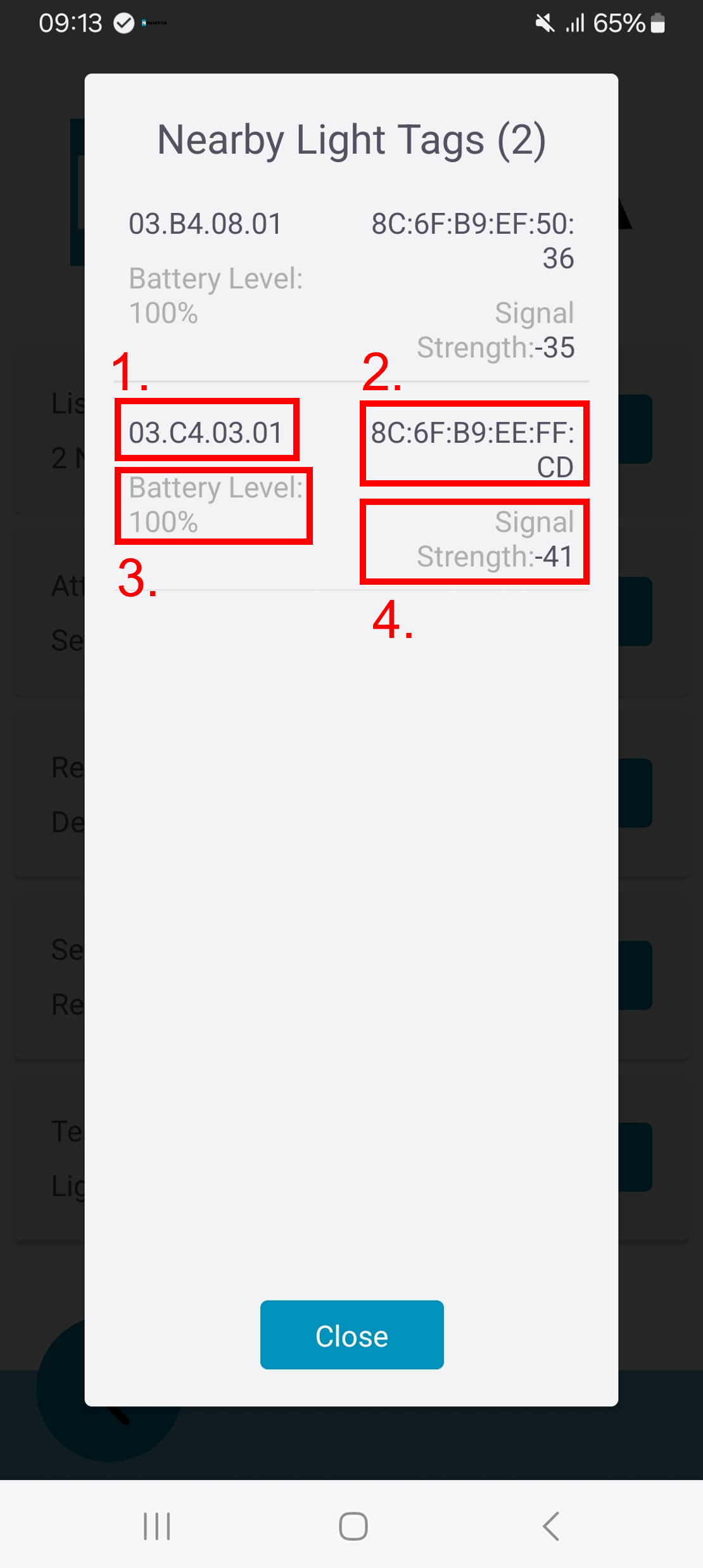
This menu displays the following information for all nearby Light Tags:
- Assigned storage location
- MAC address of the Light Tag
- Battery charge level
- Signal strength
When a Light Tag is selected, it is displayed in the NIMMSTA App's initial menu with the message "Scan Desired Location to attach".
"Attach a Light Tag" menu
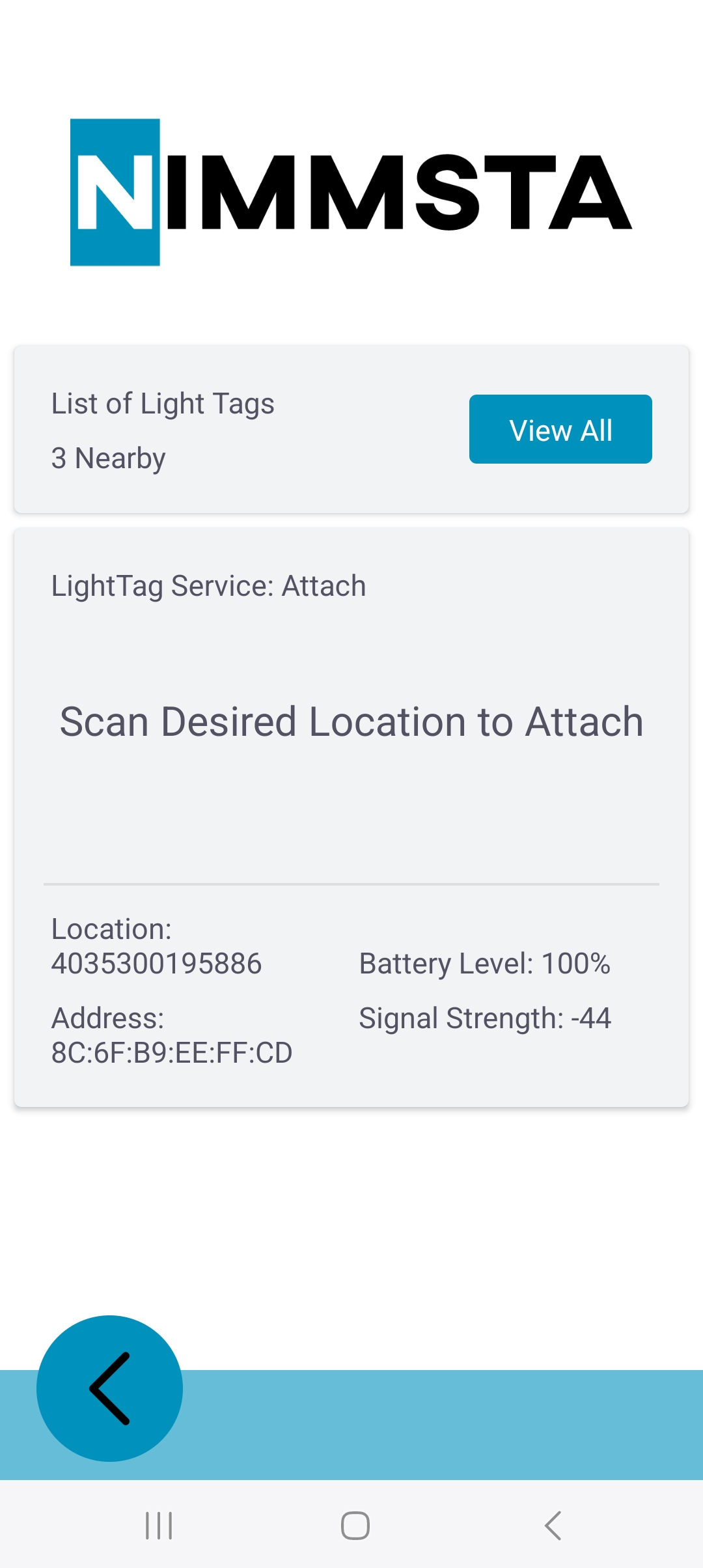
This menu assigns a specific, unique storage location to a Light Tag.
|
|
The maximum length of the storage location is 23 characters.
All ASCII characters are permitted. |
The procedure is displayed on both the mobile data terminal and the Smart Watch HS 50.
The following steps are required to assign a location:
- Remove the battery activation strip from the Light Tag
- Use the Smart Watch HS 50 to scan the barcode printed on the product label of the selected Light Tag (MAC address in DataMatrix format)
- Use the Smart Watch HS 50 to scan the desired storage location for the Light Tag
- If the assignment is successful, the Smart Watch and Light Tag briefly flash green once, and the display on the mobile data terminal changes to "Done"
- After a short time, the display returns to the first step and the next Light Tag can be assigned
If the assignment cannot be completed successfully, the Smart Watch HS 50 and Light Tag flash red.
"Reset a Light Tag" menu
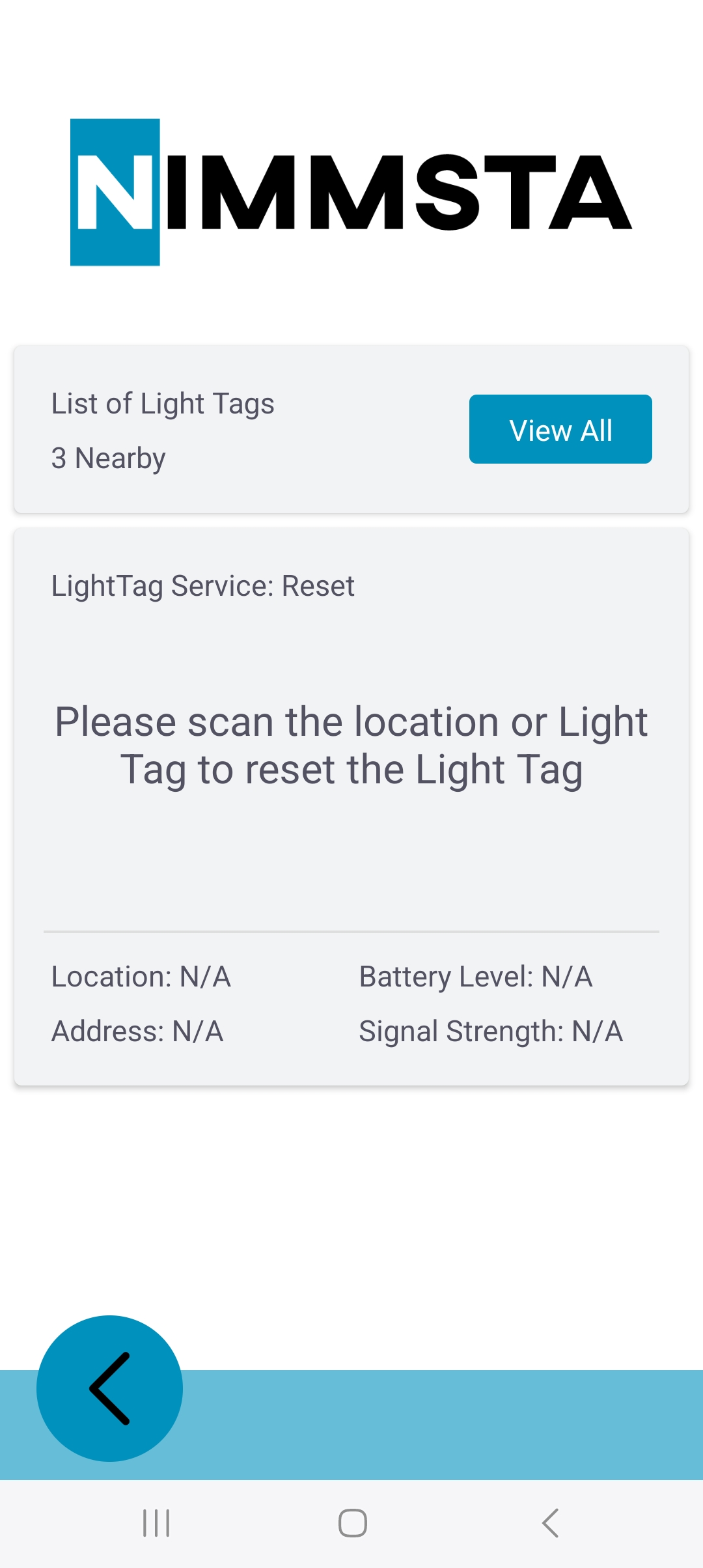
This menu removes the assignment of a Light Tag to its storage location. The following steps are required:
- Use the Smart Watch HS 50 to scan the barcode printed on the product label of the selected Light Tag (MAC address in DataMatrix format)
- Alternatively, scan the storage location
- Two buttons are then displayed on the Smart Watch touchscreen: YES / NO
- Press the desired button (YES / NO) on the Smart Watch HS 50
- If the assignment is successfully removed, the Smart Watch and Light Tag briefly flash green once, and the display on the mobile data terminal changes to "Done"
- After a short time, the display returns to the first step and the next Light Tag can be reset
If the assignment cannot be removed successfully, the Smart Watch HS 50 and Light Tag flash red.
"Service a Light Tag" menu
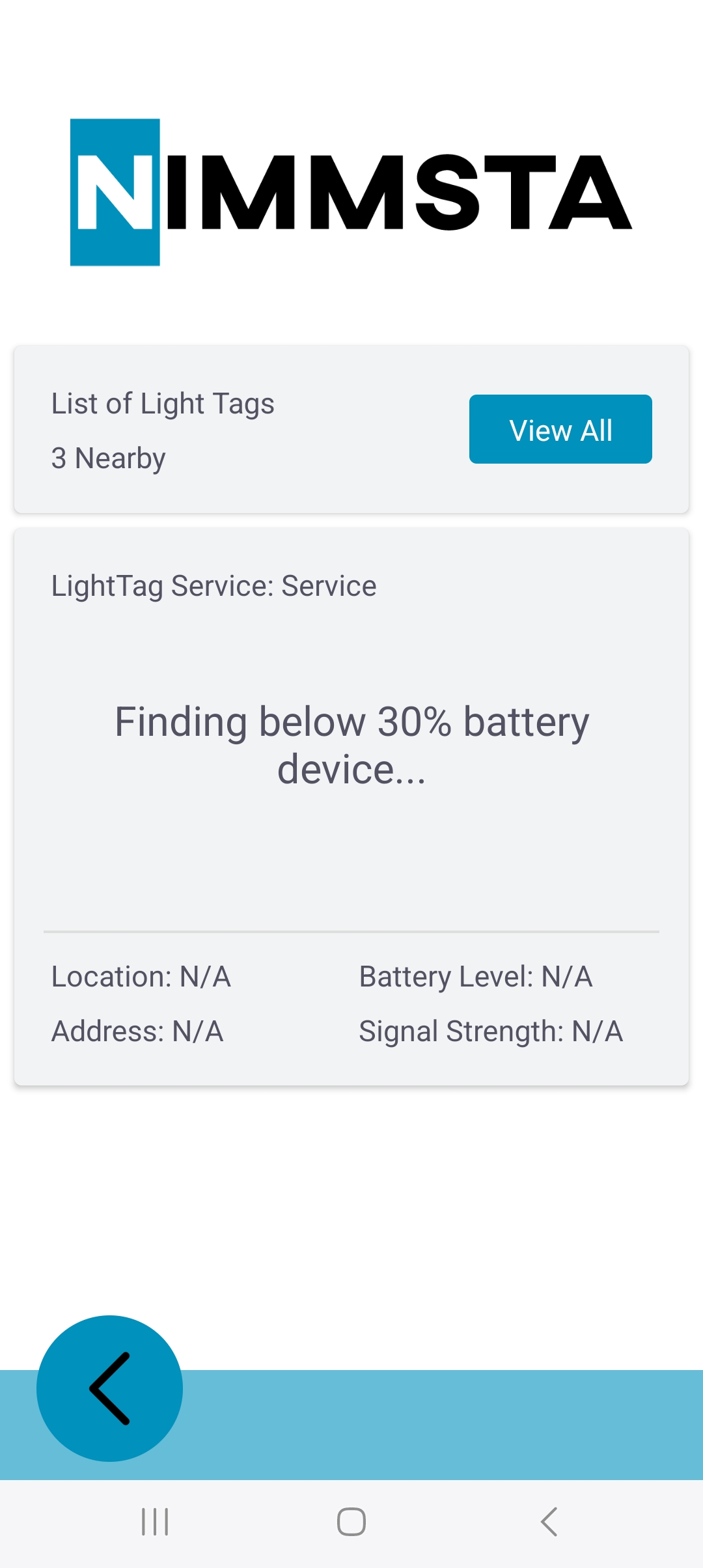
This menu displays Light Tags with a low battery charge level. The threshold can be configured; the default setting is less than 30 %. If the battery charge level is below the threshold, replacing the Light Tag is recommended. This can be done using the following steps:
- Select the "START" button on the Smart Watch HS 50
- The storage location is shown on the Smart Watch display, and the Light Tag and Smart Watch flash in the same color
- Scan the storage location
- Prepare a new Light Tag
- Remove the battery activation strip from the new Light Tag
- Use the Smart Watch HS 50 to scan the barcode printed on the product label of the selected Light Tag (MAC address in DataMatrix format)
"Test a Light Tag" menu
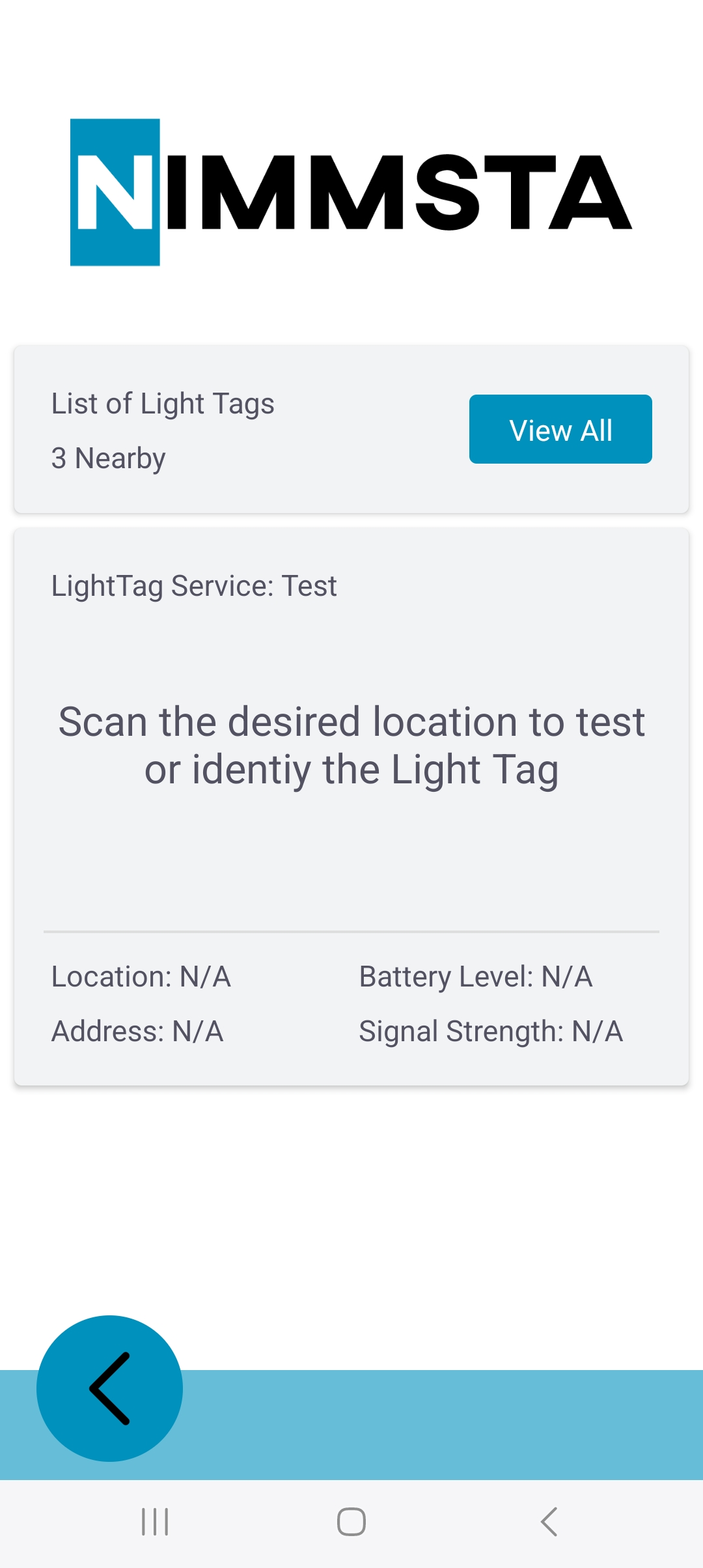
This menu provides feedback on the Light Tag being searched for. The following steps are required:
- Use the Smart Watch HS 50 to scan the barcode printed on the product label of the selected Light Tag (MAC address in DataMatrix format)
- Alternatively, scan the storage location
- The Light Tag and Smart Watch HS 50 flash in the same color
The following information about the Light Tag is shown on the Smart Watch display:
- Assigned storage location
- MAC address of the Light Tag
- Battery charge level
- RSSI
If no storage location is assigned to the Light Tag, an error message is shown on the Smart Watch HS 50 display. Select "Back" to return to the standard menu. Use "Retry" to select another Light Tag or try again.