NIMMSTA Productivity Cloud
The NIMMSTA Productivity Cloud is a software solution developed together with the NIMMSTA Smart Watch to make intralogistics processes such as picking, inventory and shipping more efficient. By integrating workflows on the Smart Watch touchscreen, employees can be guided interactively through their tasks, increasing productivity and reducing errors.
Registration with the NIMMSTA Productivity Cloud
The NIMMSTA Productivity Cloud uses the OpenID Connect (OIDC) authentication protocol to ensure secure, standardized login.
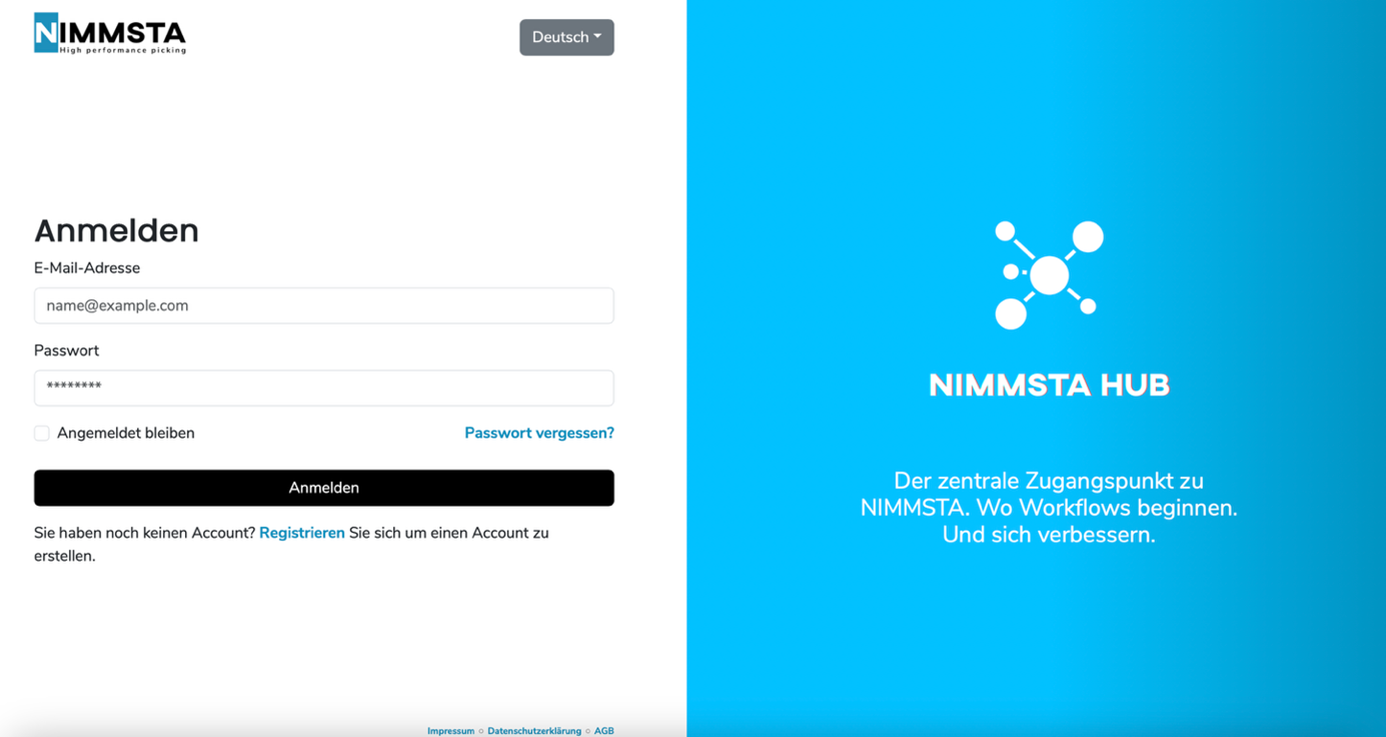
Open the NIMMSTA HUB login page
- Open the NIMMSTA HUB login page.
- A login form with fields for Email address and Password is displayed.
- If you do not yet have an account, click “Register” to create one.
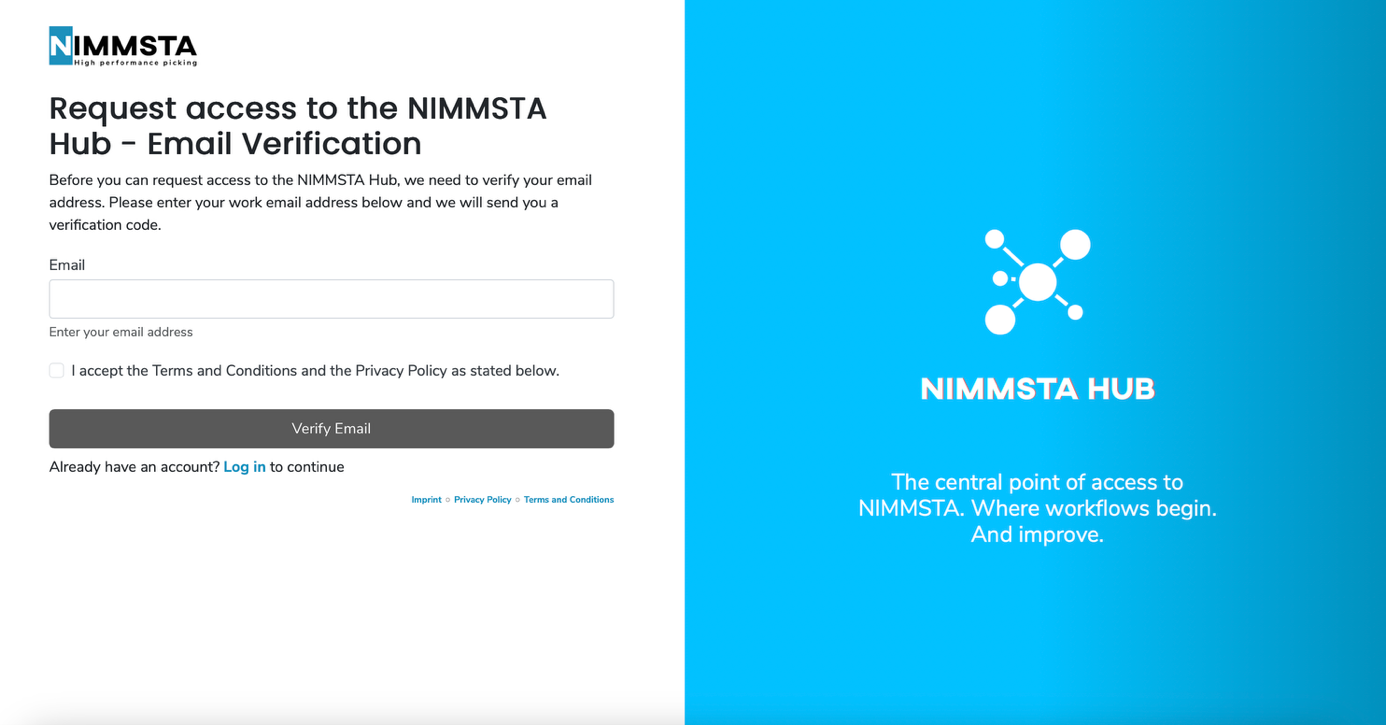
Start email verification
- Enter your email address.
- Select the checkbox “I accept the Terms and Conditions and Privacy Policy”.
- Click “Verify Email”
Retrieve the email containing the verification code
- Open your email inbox and also check the spam folder.
- You will receive a message from NIMMSTA containing a verification code.
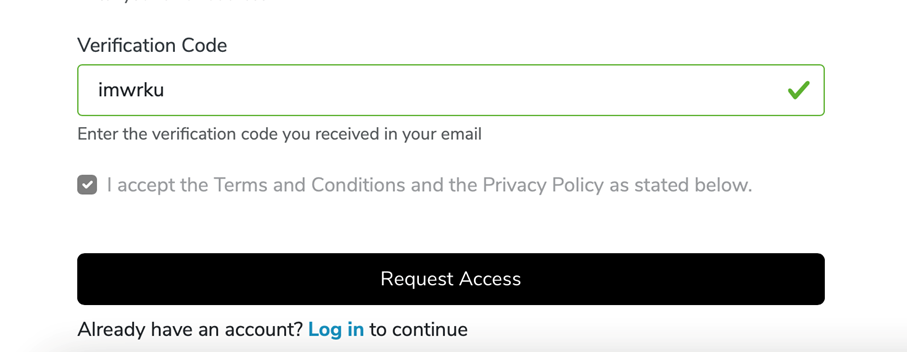
Enter the verification code
- Enter the code from the email in the “Verification Code” field.
- Select the checkbox to accept the Terms and Conditions and Privacy Policy again.
- Click “Request Access”.
Enter your personal details
- You will be redirected to a form in which you enter the following details: Company name, first name, last name. The email address and verification code are already filled in.
- Finally, click “Request Access”.
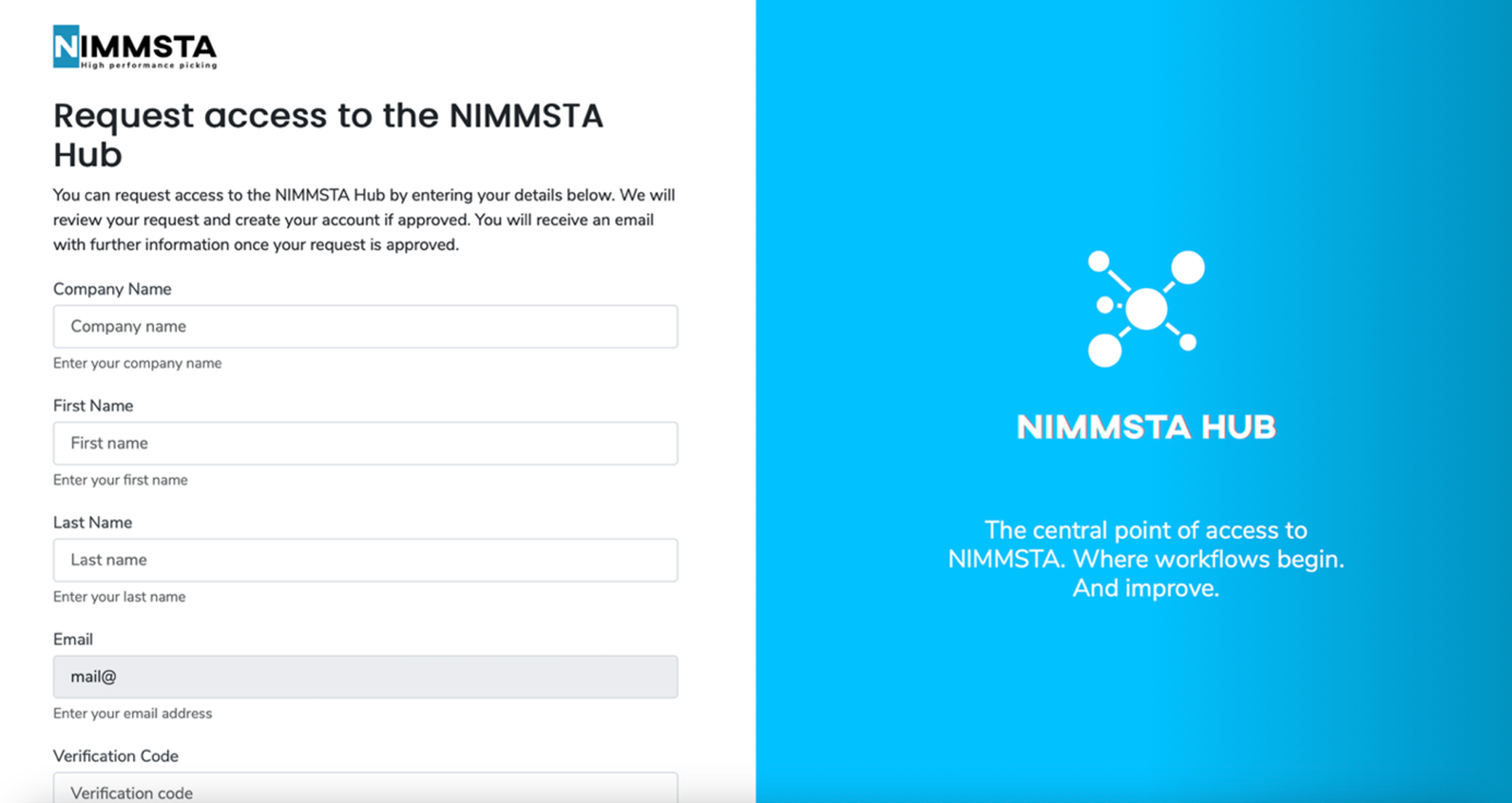
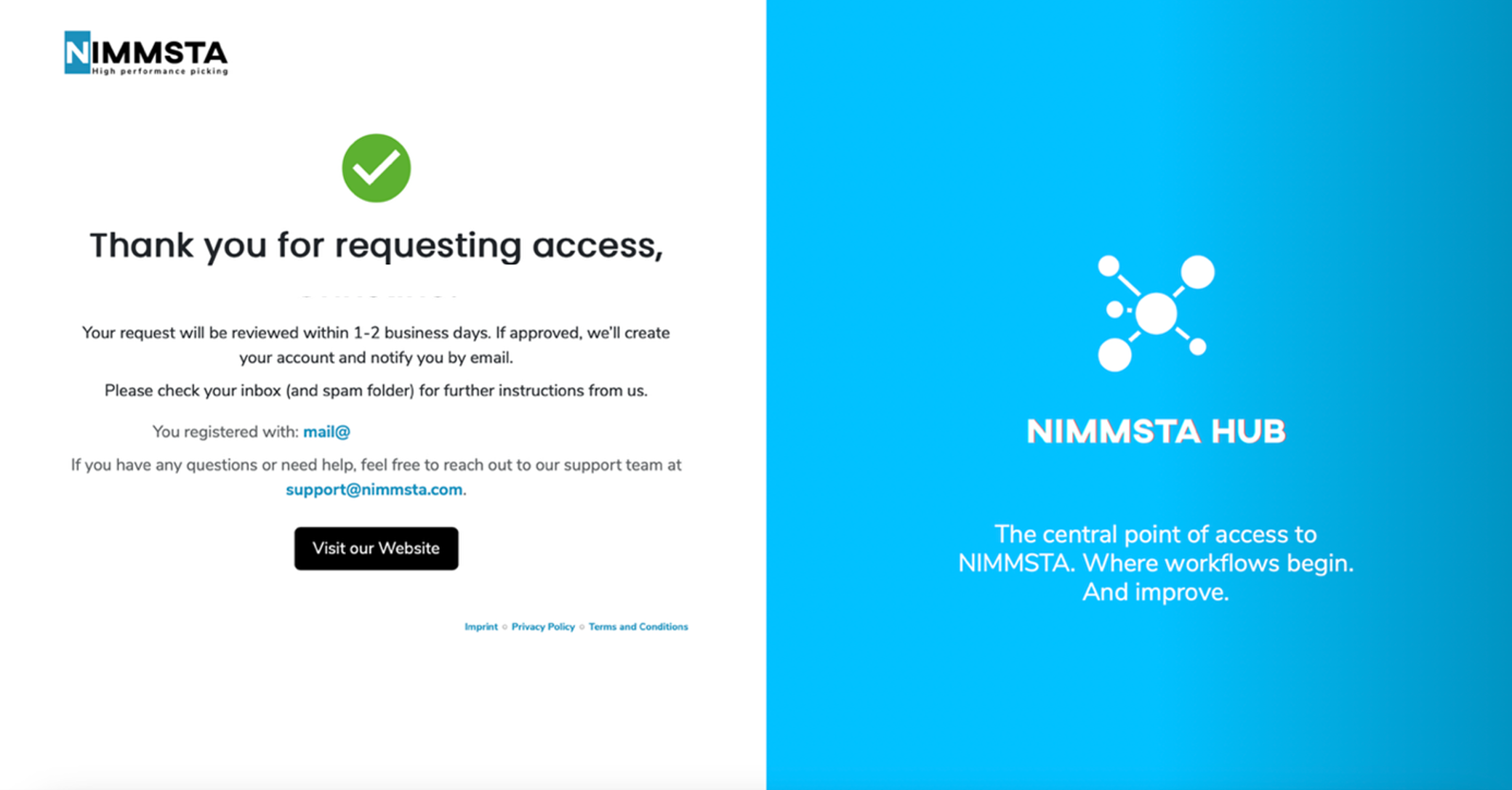
Request confirmation
- A confirmation message is displayed:
“Thank you for your request, [First name]! Your request will be reviewed within 1- 2 business days.” - After successful review, you will receive another email from NIMMSTA with information about creating your account.
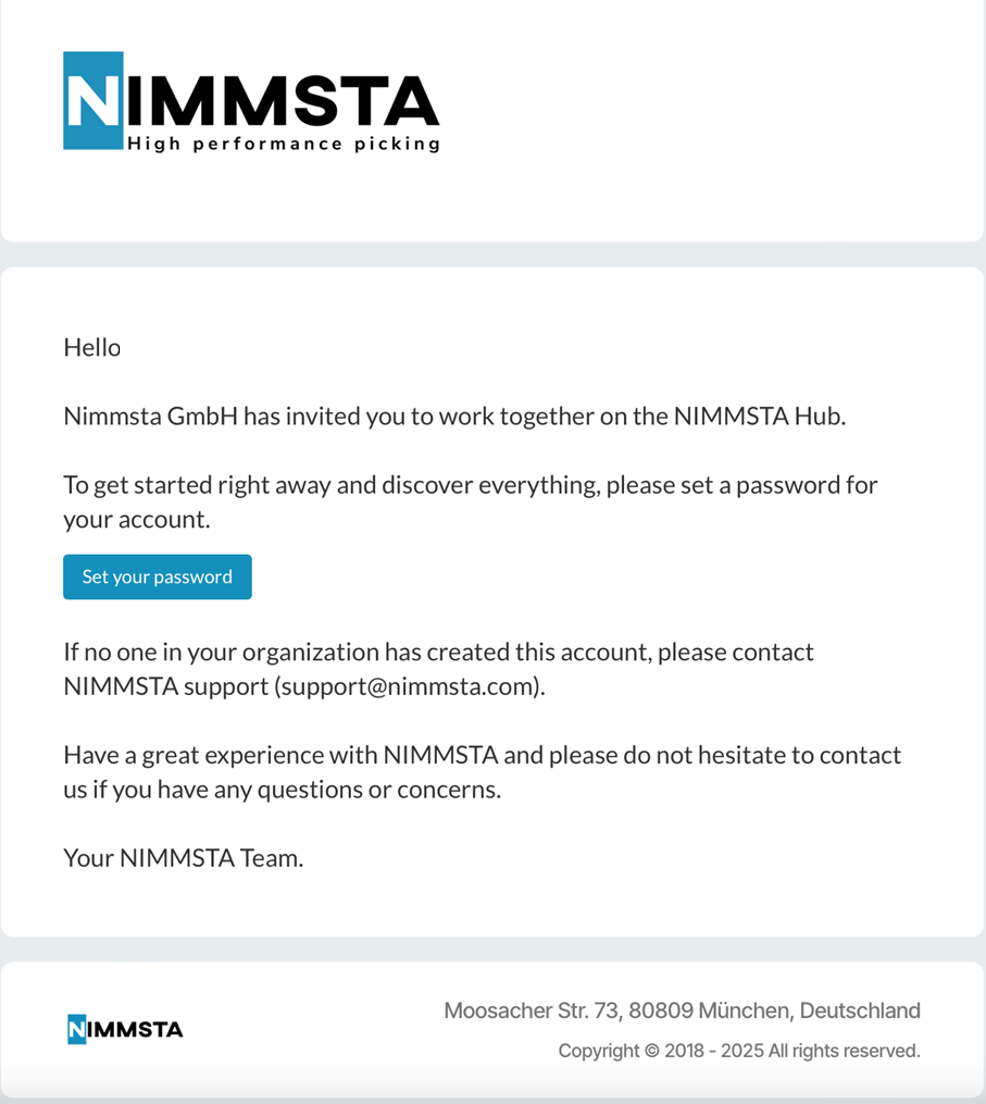
Invitation and password setup
- Once your request is approved, you will receive an email with the subject:
“NIMMSTA GmbH has invited you…” - In this email, click “Set your password” to activate your account.
Log in to the NIMMSTA HUB
- Open the NIMMSTA HUB login page again.
- Enter your email address and the password you just set.
- Optional: Select “Stay signed in” if required.
- Click “Log in”.
Setup complete!
You now have access to the NIMMSTA HUB – your central starting point for optimizing your workflows.
Integration into your systems
The Productivity Cloud can be seamlessly integrated into existing warehouse or ERP systems. For individual advice and technical support, contact the NIMMSTA Support team or a certified partner directly.
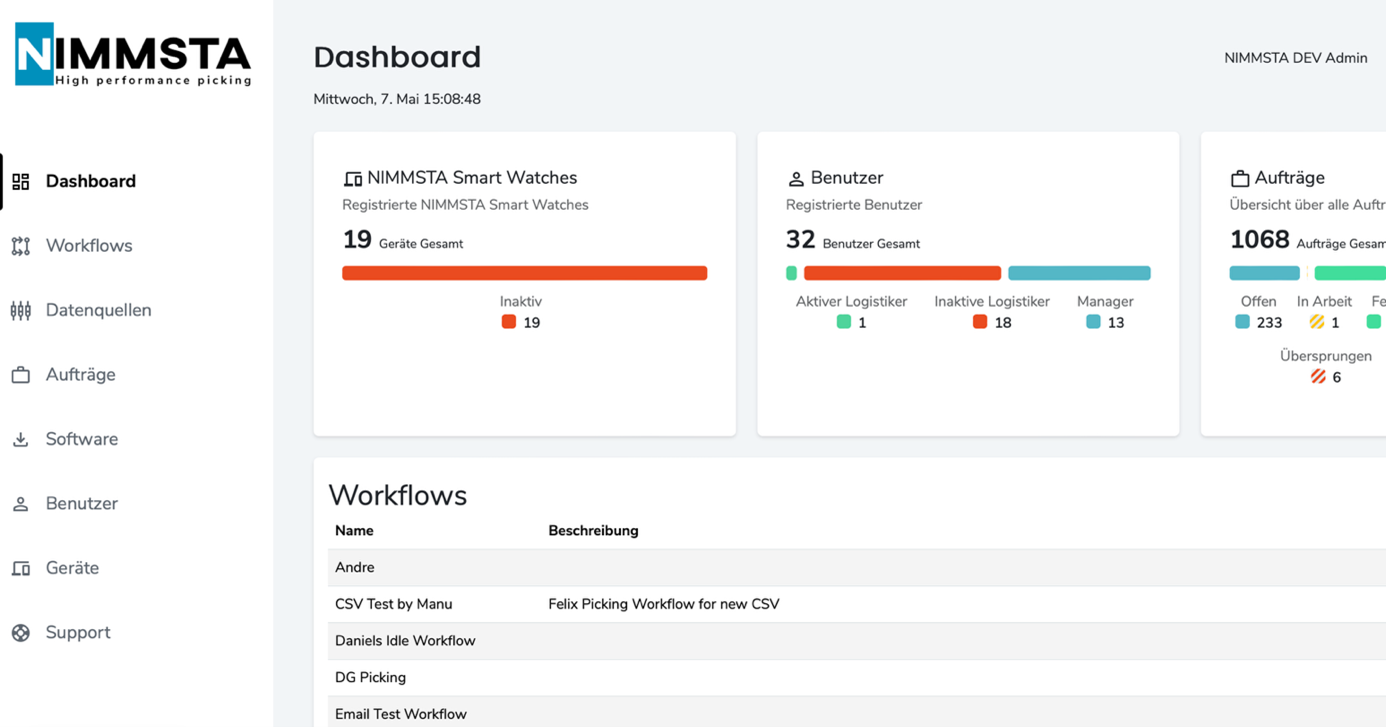
Dashboard
The dashboard provides a central overview of your organizations, workflows and devices.
- Organizations: Manage your company structure and user permissions.
- Workflows: Create and edit individual workflows for processes such as picking, inventory or shipping.
- Device management: Monitor and configure your NIMMSTA Smart Watches and other connected devices.
Workflow
Access the Workflow section
- Login: Go to https://staging.cloud.nimmsta-test.de/workflows and log in with your credentials.
- Overview: After successful login, a list of your existing workflows is displayed, sorted by name.
Instructions: Create a workflow with or without a template
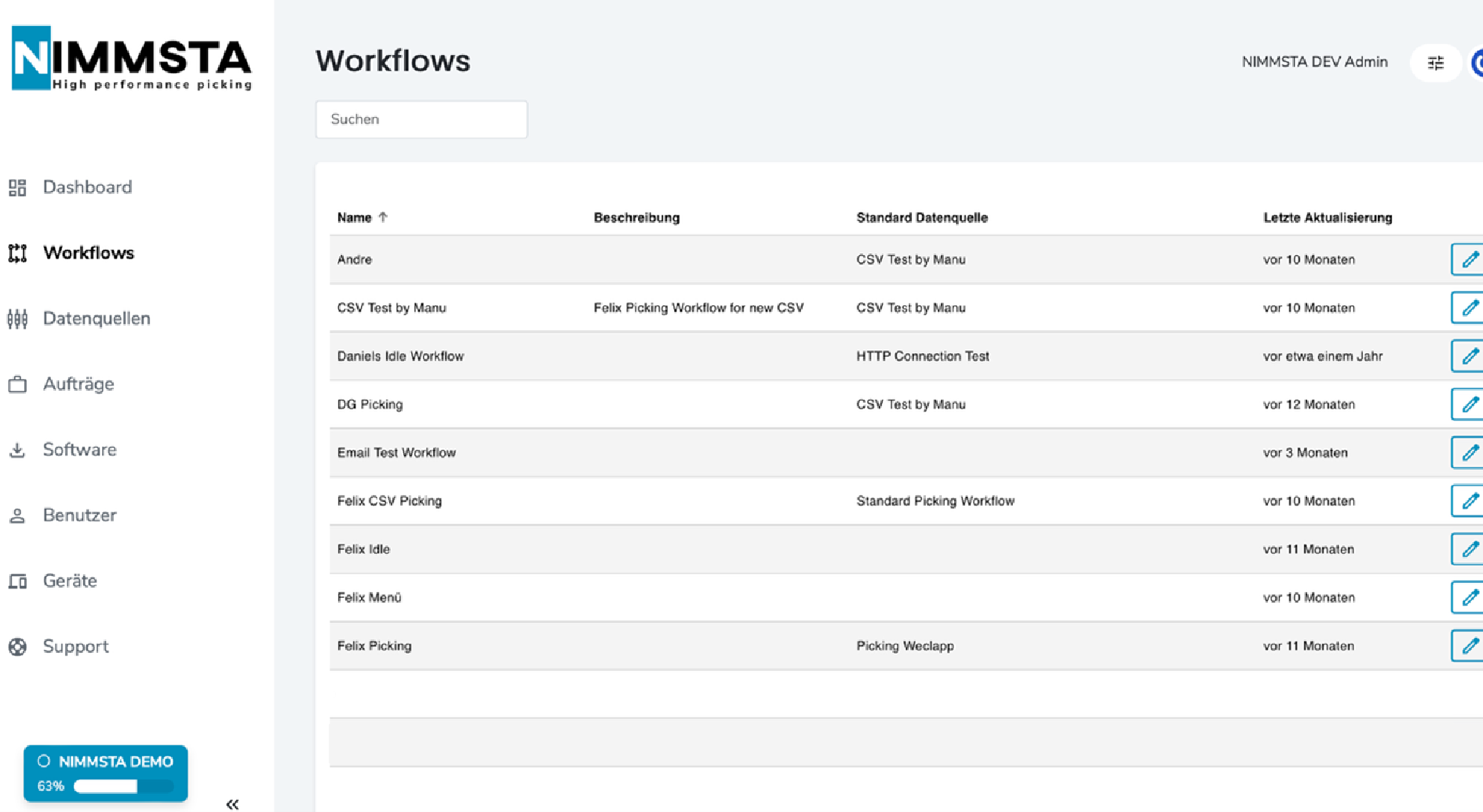
Step 1: Open the dialog box
- When you open the “Create workflow” function, a dialog box titled “Create workflow” appears.
Step 2: Select a template (optional)
- A dropdown menu is displayed in the “Template” section.
- Click the dropdown menu to view a list of predefined templates.
Step 3: Available options
The following options are available:
- “Create your own workflow.”
Select this option to define the workflow entirely manually. - Predefined templates:
- Picking Workflow with Light Tag (CSV-Connection)
- Sorting Workflow with Light Tag (CSV-Connection)
- Standard Picking Workflow
These options allow you to start quickly with a predefined structure.
Step 4: Click Next
- After selecting a template (or deliberately choosing none), click the blue “Next” button to proceed to the next workflow step.
Step 5: Save or cancel (optional)
The following buttons are available at the bottom:
- “Cancel”: Cancels the process.
- “Save”: Becomes active only when a valid workflow has been defined.
Step 6: Enter general workflow data
- Name
- Enter a name of your choice for the workflow
- Unique name
- This is a technical identifier that is unique across the system
- Do not use spaces or special characters.
- Default data source
- Select the primary data source for this workflow from the dropdown menu
Step 7: Additional settings
Pause Workflow
- Select the “Is Pause Workflow?” checkbox if this workflow is specifically intended for break times.
- Note: These workflows are displayed separately before work starts or during official breaks.
Step 8: Add a description
- Enter a short description documenting the purpose or procedure of the workflow.
- A maximum of 255 characters is permitted.
Step 9: Save or cancel
- Click “Save” to create the workflow.
- Click “Cancel” to cancel the process without making changes.
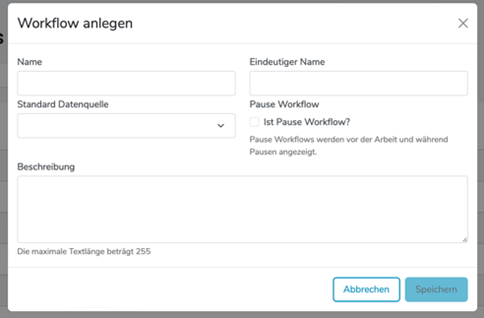
Step 10: Workflow successfully saved
After clicking “Save”, the new workflow appears in the workflow overview list. From here, you can:
- Activate the workflow
- Add further steps, actions or conditions
- Test the workflow or assign it to a user
Data sources
Navigation
- The “Data sources” menu item is located in the left sidebar.
- Click it to display all currently configured data sources.
Data source overview
The table provides an overview of all existing data sources:
| Column | Description |
|---|---|
| Name | Name of the data source |
| Description | A short internal description |
| Type | CSV or HTTP, depending on the data source |
| Last update | When the data source was last updated |
| Actions | “Upload CSV” button for manual file updates |
Add a new data source
Three buttons are available at the top right:
- “New”: Create a new data source manually
- “Create from template”: Use predefined templates
- “Import”: Import a data source by uploading a file
Upload CSV
For CSV data sources, use the “Upload CSV” button to upload a new file:
- Click the corresponding button to the right of the data source
- Select the CSV file from your system
- Upload the file – the data source is updated automatically
Further options
- A three-dot menu (⋮) is available to the right of each row.
- Use it to perform further actions (Edit, Delete, Export)
Create a new data source
- Click “New”
- The “New” button is located at the top right of the “Data sources” view.
- A new dialog box titled “Data source” opens.
- Select a type
- Open the dropdown menu under “Type”.
- Select one of the two types:
- CSV data source – For uploading CSV files
- HTTP data source – For accessing data via an HTTP interface
- Additional fields appear
- Further input fields are displayed after selecting the type
- Complete the form
- Enter the required data for the selected type.
- Make sure that all mandatory fields are completed correctly.
- Save
- The “Save” button becomes active once all required fields are completed.
- Click it to create the data source.
- Cancel
- You can cancel the process at any time using the “Close” button.

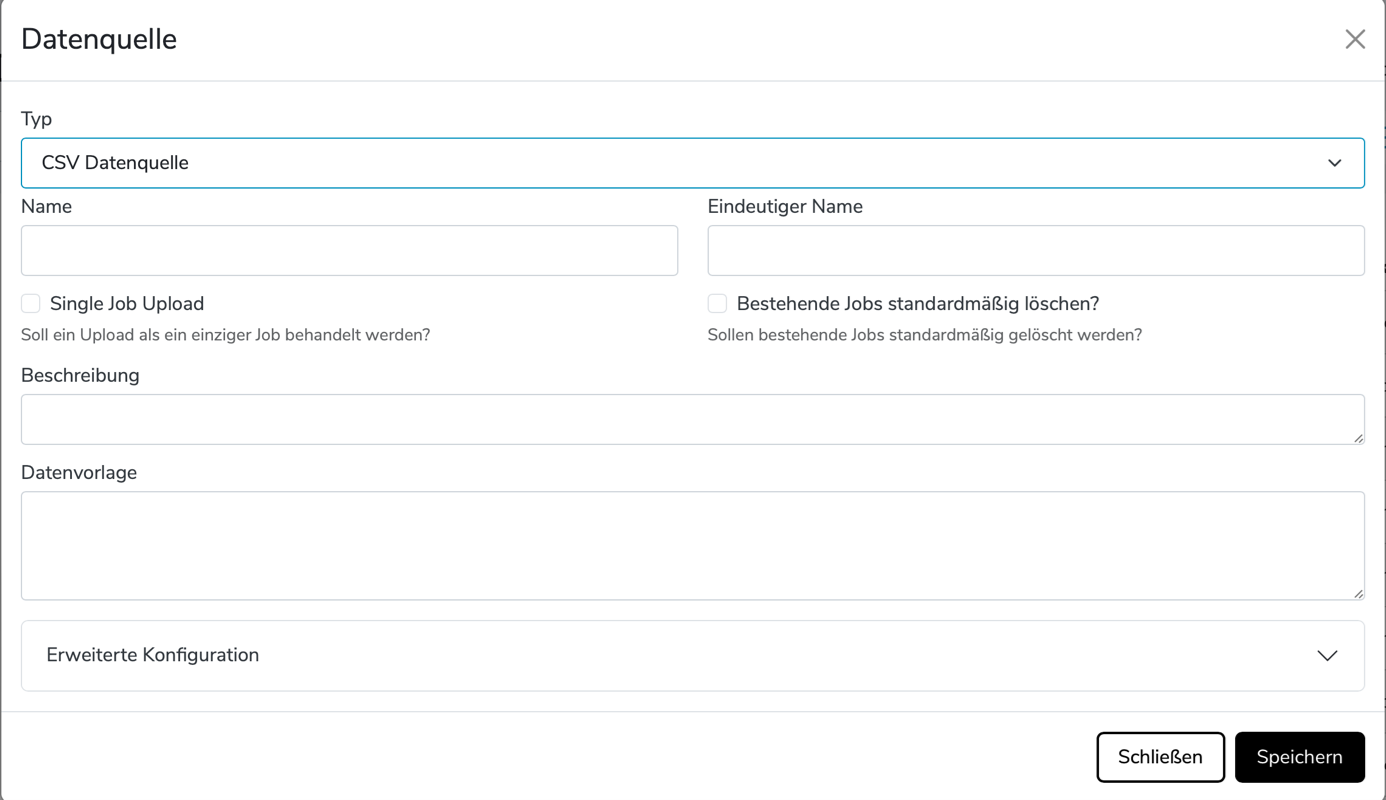
CSV data source
After selecting a CSV data source, the following additional options appear:
| Field / option | Meaning |
|---|---|
| Name | Name of the data source |
| Single Job Upload | An entire CSV upload is treated as a single job |
| Delete existing jobs by default | Existing jobs are deleted automatically when a new file is uploaded |
| Data template | Template defining the CSV format schema |
| Advanced configuration | Use this field to define advanced configurations. Information is available in the platform documentation |
After completing the fields, click “Save”.
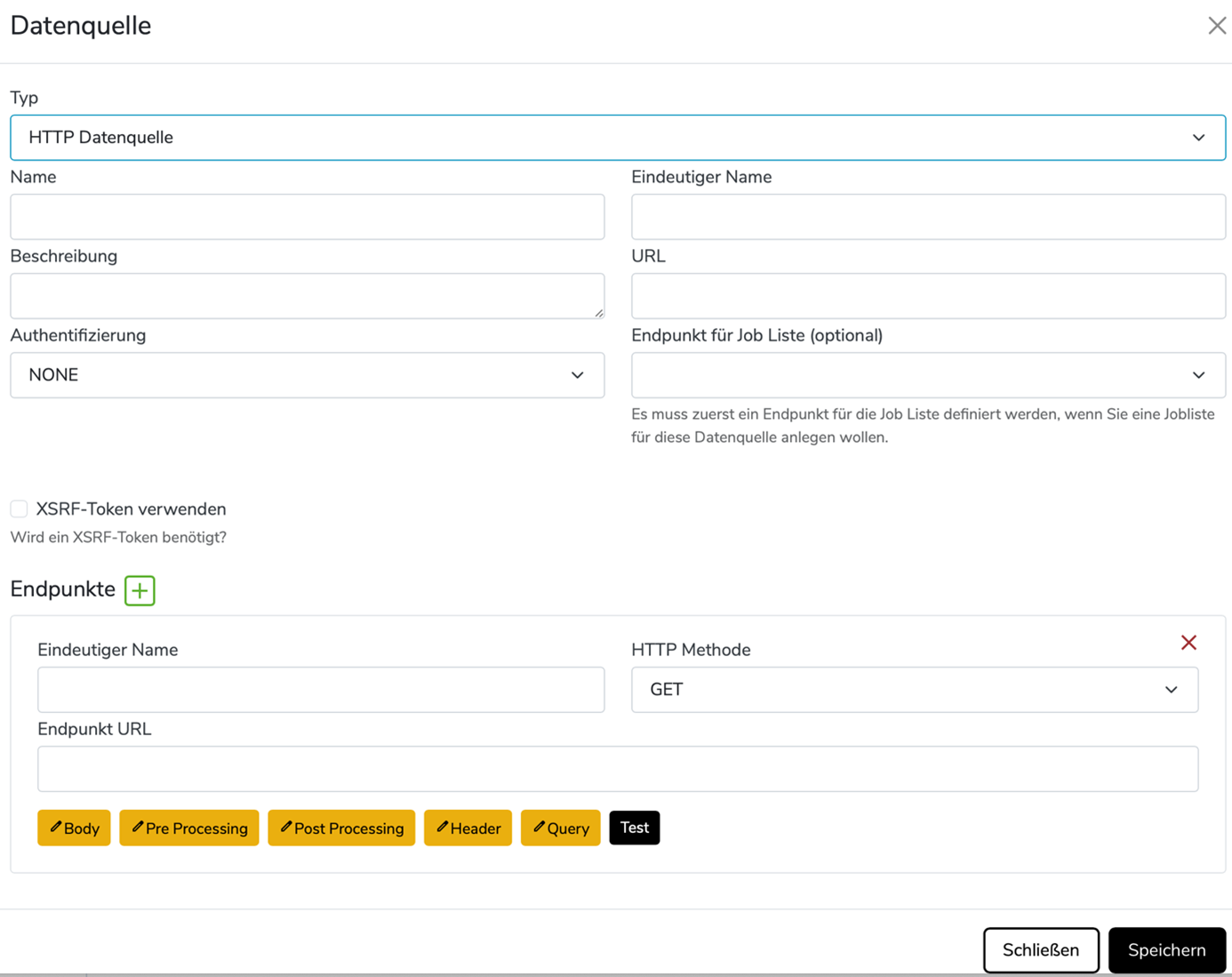
HTTP data source
When an HTTP data source is selected, the following specific fields appear:
| Field name / section | Function |
|---|---|
| URL | Destination address for data retrieval |
| Authentication | Options: e.g. NONE, BASIC, BEARER |
| Job list endpoint | Optional |
| Use XSRF token | Enable |
Configure endpoints
Additional configuration options for each endpoint:
- Body
- Header
- Query
- Pre/Post Processing
- Test
After configuration, click “Save”.
Managing jobs in the NIMMSTA system
Overview
The “Jobs” page displays all work orders currently recorded in the system. It is divided into status tabs.
Tabs (at the top of the main area)
- Open: Shows all jobs that have not yet been processed.
- In progress: Jobs currently being processed.
- Done: Completed jobs.
- Cancelled: Cancelled jobs.
- Deleted: Deleted jobs.
- All: Overview of all jobs.
Select a data source
Dropdown menu labeled “Data source”.
Example: “CSV Test by Manu” – select the source from which the jobs are loaded.
Add jobs
The “Add jobs” button is used to upload or create new jobs manually.
Job list
The table shows the most important information for each job:
| Column | Meaning |
|---|---|
| Name | Job name |
| Status | Displayed as a dot and text (e.g. “Open”) |
| Created on | Date and time the job was created |
| Priority | Indicated by arrows: |
| ↑: Medium priority | |
| ↑↑: Higher priority |
Further options (⋮)
A three-dot menu (⋮) is available at the right-hand edge of each entry for further actions (remove prioritization, cancel, delete).

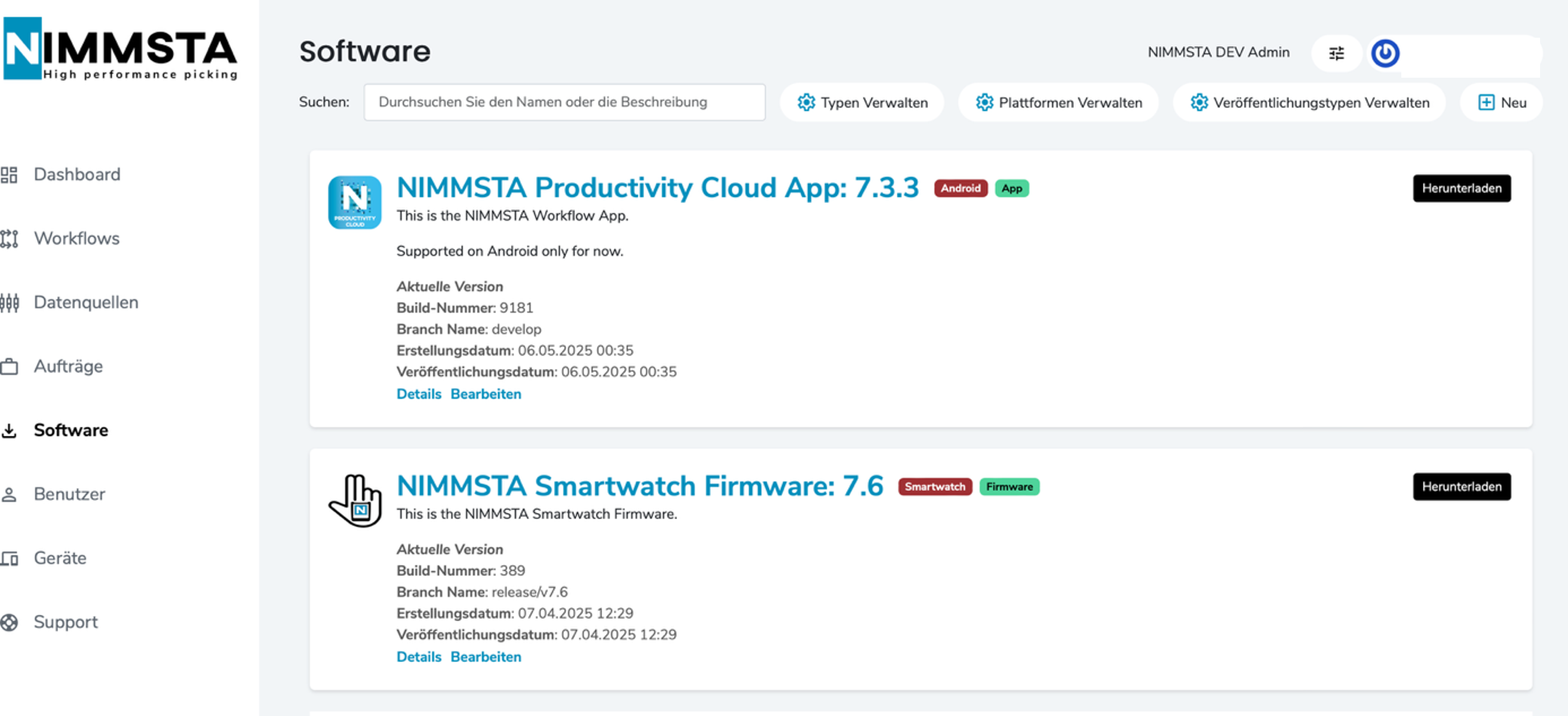
Software
This page allows you to manage software versions for NIMMSTA devices and applications.
Search for software
Search bar at the top: Enter a name or description to search for specific software.
Filtering and management options
Four buttons are available at the top:
- Manage types: Define or edit software types
- Manage platforms: Manage supported platforms such as Android or Smart Watch
- Manage release types
- New: Upload and add a new software version
Listed software
The current software options are displayed here. You can download the current app software here.
User management
This page allows you to view and manage user accounts and add new users. Users are divided into two tabs:
- Managers
- Workers
Functions in detail
Search field
A search field at the top allows you to filter by name, email address or role.
User list
The table contains the following columns:
| Column | Meaning |
|---|---|
| Last name | User's last name |
| First name | User's first name |
| User's email address | |
| Role | Role in the system (e.g. NIMMSTA Administrator, Manager) |
| Status | Active or inactive (🟢 active, 🔴 inactive) |
| Created on | Time the account was created |
Status indicator
- 🟢 active: The user is active in the system
- 🔴 inactive: The user is currently disabled
Three-dot menu (⋮)
A menu for further options is available at the end of each row.
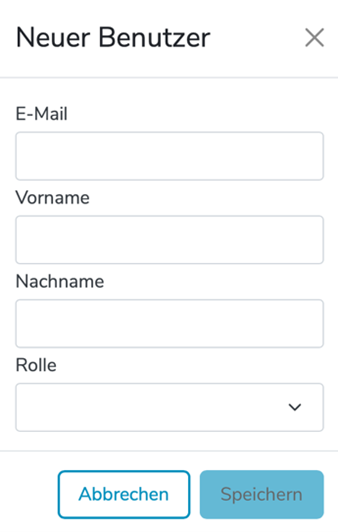
Add a new user
- The “New” button is located at the top right.
- Clicking this button opens a form for adding a new user.
Permissions
Overview
Permissions define what a user can do in the system.
A user can have one or more roles. Each role gives access to specific areas such as workflows, jobs, workers, or data connections.
Roles apply to all organizations assigned to the user. They are not configured separately per organization.
Example:
- User has the
Job Managerrole - User is assigned to Organization A and Organization B
- User can manage jobs in Organization A
- User can manage jobs in Organization B
- User cannot manage jobs in Organization C unless assigned there too
Access depends on two things:
- the user's roles
- the organizations assigned to the user
Roles
| Role | Intended Use |
|---|---|
| Manager | Full organization management access |
| Workflow Editor | Create and edit workflows and data connections |
| Job Manager | Upload, view, update, cancel, delete, and prioritize jobs |
| Job Uploader | Upload jobs and use data connections needed for uploads |
| Worker Manager | Manage workers and handheld assignments |
Permission Matrix
| Permission Area | Manager | Workflow Editor | Job Manager | Job Uploader | Worker Manager |
|---|---|---|---|---|---|
| View workflows | Yes | Yes | No | No | No |
| Create/edit workflows | Yes | Yes | No | No | No |
| View data connections | Yes | Yes | Yes | Yes | No |
| Create/edit data connections | Yes | Yes | No | No | No |
| View jobs | Yes | No | Yes | No | No |
| Upload/start jobs | Yes | No | Yes | Yes | No |
| Manage jobs | Yes | No | Yes | No | No |
| View workers | Yes | No | Yes | No | Yes |
| Manage workers | Yes | No | No | No | Yes |
Role Details
Manager
Managers have full organization management access.
Managers can:
- view workflows
- create and edit workflows
- view data connections
- create and edit data connections
- view jobs
- upload and start jobs
- manage jobs
- view workers
- manage workers
Workflow Editor
Workflow Editors manage workflows and related data connections.
Workflow Editors can:
- view workflows
- create and edit workflows
- view data connections
- create and edit data connections
Workflow Editors cannot:
- view jobs
- upload or start jobs
- manage jobs
- view workers
- manage workers
Job Manager
Job Managers manage operational jobs.
Job Managers can:
- view data connections
- view jobs
- upload and start jobs
- manage jobs
- view workers
Job Managers cannot:
- view workflows
- create or edit workflows
- create or edit data connections
- manage workers
Job Uploader
Job Uploaders can upload and start jobs.
Job Uploaders can:
- view data connections
- upload and start jobs
Job Uploaders cannot:
- view workflows
- create or edit workflows
- create or edit data connections
- view jobs by default
- manage jobs
- view workers
- manage workers
Worker Manager
Worker Managers manage workers and handheld assignments.
Worker Managers can:
- view workers
- manage workers
Worker Managers cannot:
- view workflows
- create or edit workflows
- view data connections
- create or edit data connections
- view jobs
- upload or start jobs
- manage jobs
Permission Details
Workflows
Workflow permissions control access to workflow definitions.
View workflow access allows a user to open and inspect workflows.
Create/edit workflow access allows a user to create, update, publish, or modify workflows.
Data Connections
Data connection permissions control access to external systems used by workflows and jobs.
View data connection access allows a user to inspect or select existing data connections.
Create/edit data connection access allows a user to create or change data connection configuration.
Jobs
Job permissions control operational workflow execution.
View job access allows a user to see jobs and workflow executions.
Upload/start job access allows a user to create jobs from uploaded data.
Manage job access allows a user to cancel, delete, update, or prioritize jobs.
Workers
Worker permissions control operational users and handheld assignments.
View worker access allows a user to see workers.
Manage worker access allows a user to create, update, unpair, or delete workers.
Organization Access
Roles apply to all organizations assigned to the user.
If a user has a role, the permissions from that role are available in every organization assigned to that user.
Example:
- User has the
Workflow Editorrole - User is assigned to Organization A and Organization B
- User can edit workflows in Organization A
- User can edit workflows in Organization B
- User cannot edit workflows in Organization C unless assigned there too
Roles are not currently assigned per organization.
This means the following is not currently supported:
Job Managerin Organization AWorker Managerin Organization B- no permissions in Organization C
Instead, if the user has both Job Manager and Worker Manager, both roles apply to all assigned organizations.
Multiple Roles
A user can have multiple roles.
When a user has multiple roles, permissions are combined.
Example:
- User has
Workflow Editor - User also has
Job Uploader - User can create and edit workflows
- User can view data connections
- User can upload and start jobs
The user receives the combined permissions of both roles across all assigned organizations.
Access Examples
Example 1: Job Manager In Two Organizations
User setup:
- Role:
Job Manager - Assigned organizations: Organization A, Organization B
Result:
- Can view jobs in Organization A
- Can manage jobs in Organization A
- Can view jobs in Organization B
- Can manage jobs in Organization B
- Cannot manage jobs in Organization C
Example 2: Workflow Editor And Job Uploader
User setup:
- Roles:
Workflow Editor,Job Uploader - Assigned organization: Organization A
Result:
- Can view workflows in Organization A
- Can create and edit workflows in Organization A
- Can view data connections in Organization A
- Can upload and start jobs in Organization A
- Cannot manage jobs in Organization A
- Cannot manage workers in Organization A
Example 3: Worker Manager
User setup:
- Role:
Worker Manager - Assigned organization: Organization A
Result:
- Can view workers in Organization A
- Can manage workers in Organization A
- Cannot view jobs in Organization A
- Cannot upload jobs in Organization A
- Cannot edit workflows in Organization A
Important Notes
- Roles apply to all organizations assigned to the user.
- Roles are not configured separately per organization today.
- A user can have multiple roles.
- Multiple roles are combined.
- Some technical app, SDK, and administrator-only system endpoints may use separate access rules outside this user-facing permission matrix.
Device Management
Navigation
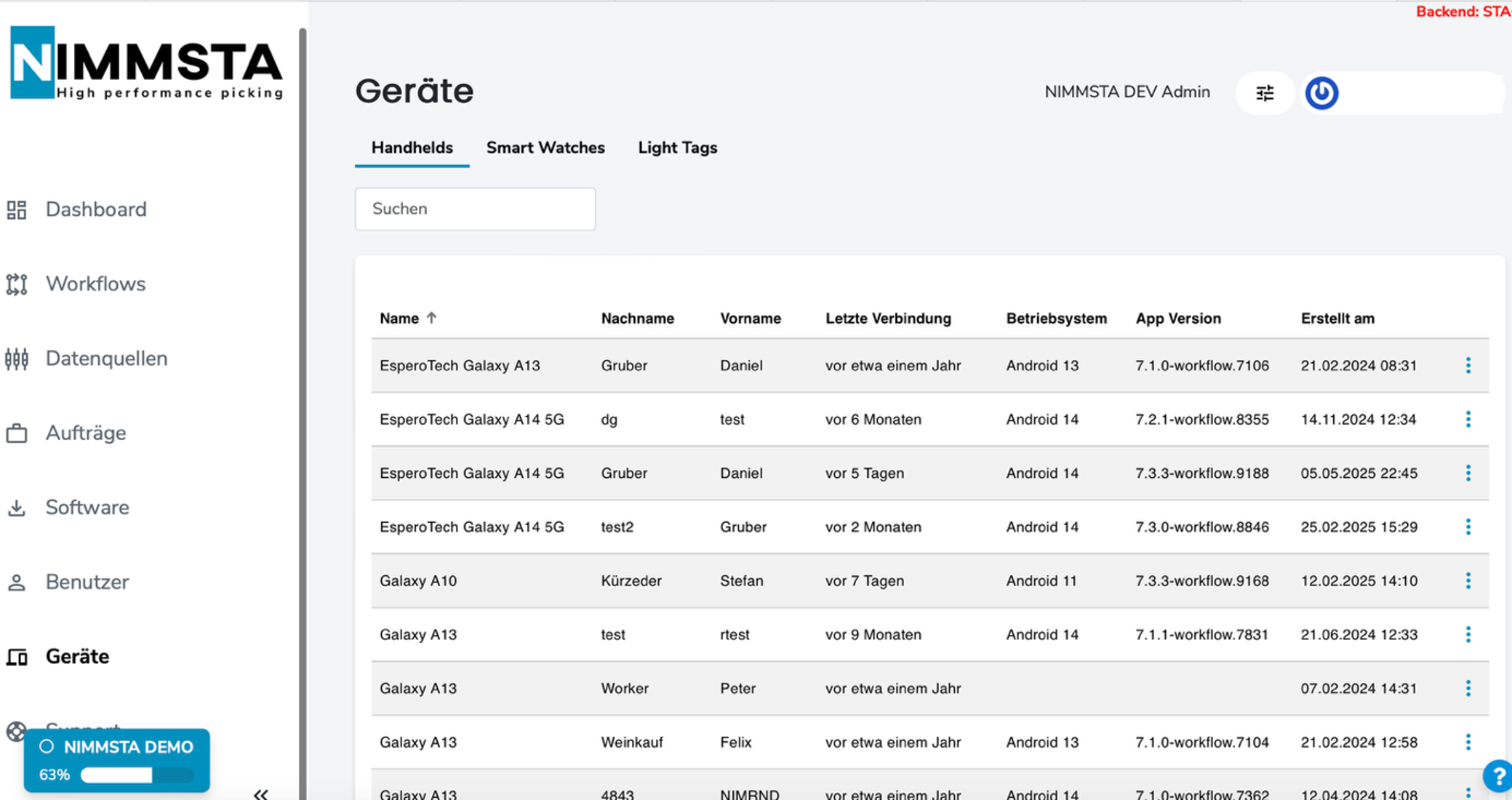
The "Devices" menu item is located in the left sidebar.
After opening the page, you can switch between the Handhelds, Smart Watches and Light Tags tabs.
Search function
A search field is located directly below the tabs.
Here you can filter by device name, users or other information.
Device list
The table contains the following columns:
| Column | Meaning |
|---|---|
| Name | Device name (e.g. "Galaxy A13", "EsperoTech Galaxy A14 5G") |
| Last name / First name | User to whom the device is assigned |
| Last connection | When the device last connected to the system |
| Operating system | Installed Android operating system |
| App version | Version of the installed NIMMSTA App |
| Created on | Date and time the device was registered |
Sorting function
Click the column headers to sort by other criteria.