Operation and displays
Switch on to scan - Interactive user guidance
The following example shows the user guidance from the switched-off Smart Watch HS 50 through to scanning a barcode.
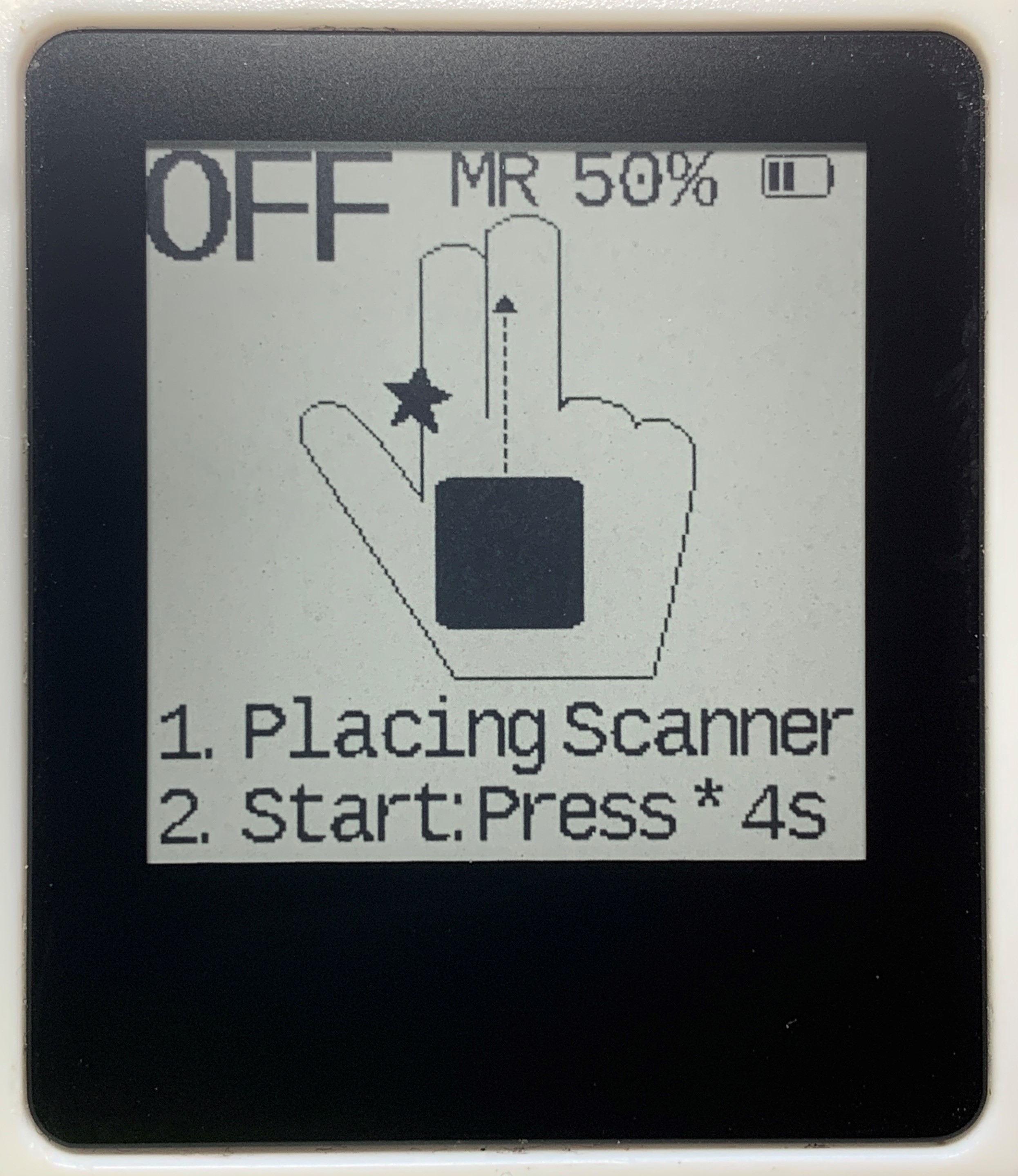 |
Smart Watch HS 50 is off |
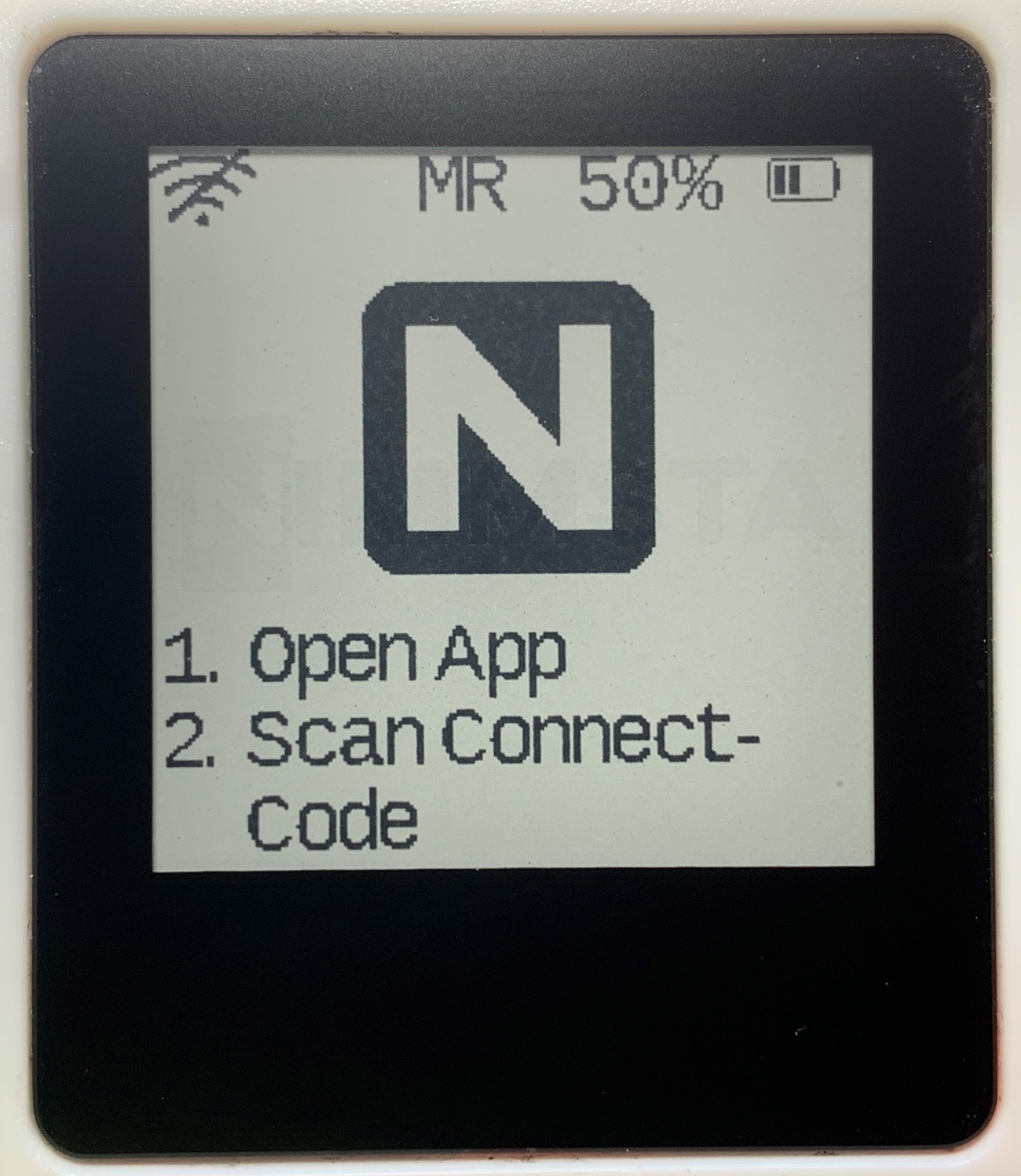 |
On – not connected to the target device |
| Scan the “Connect Code” in the app |
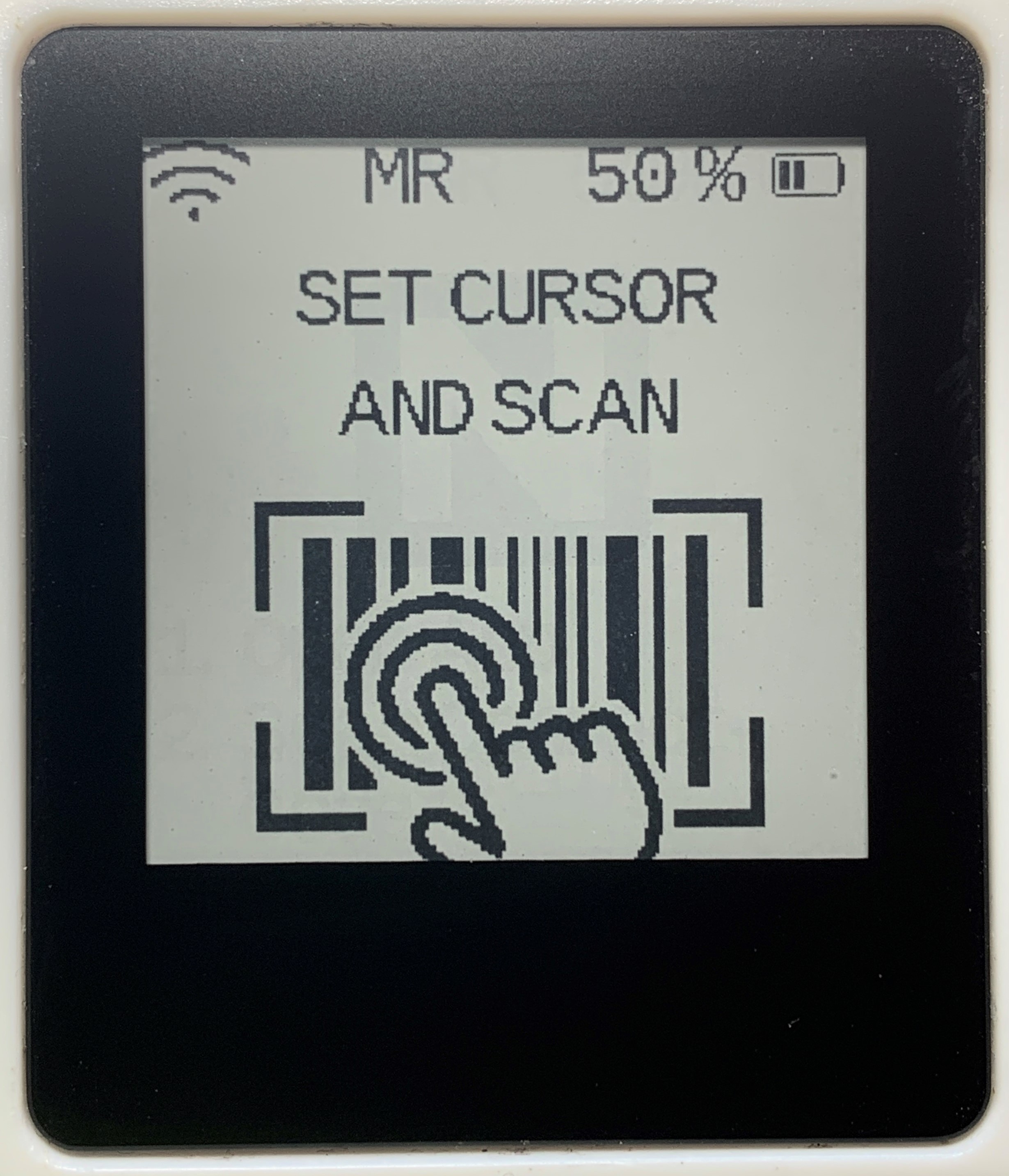 |
Connected to the target device |
| Scan |
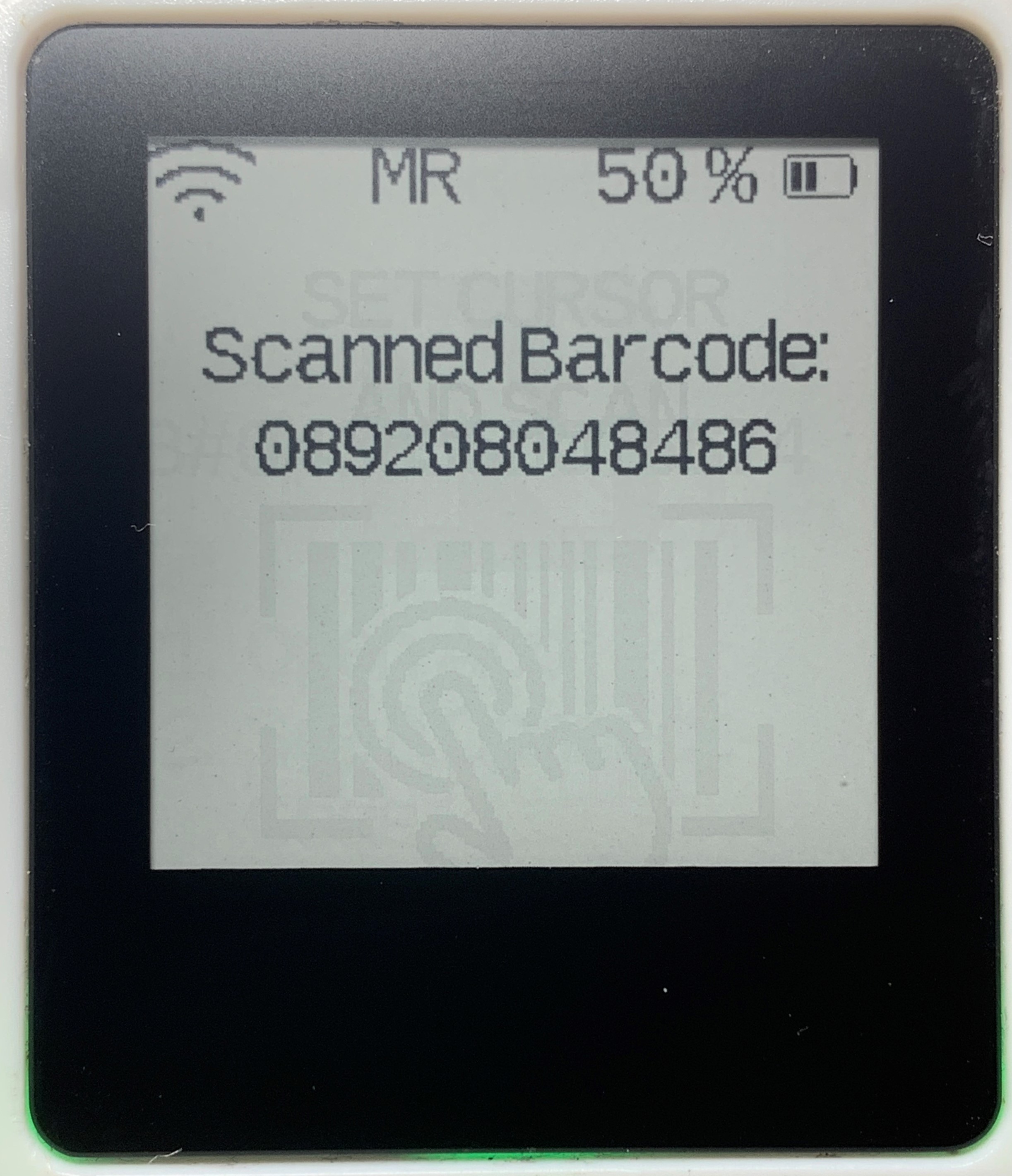 |
Scan feedback: The scanned code is displayed |
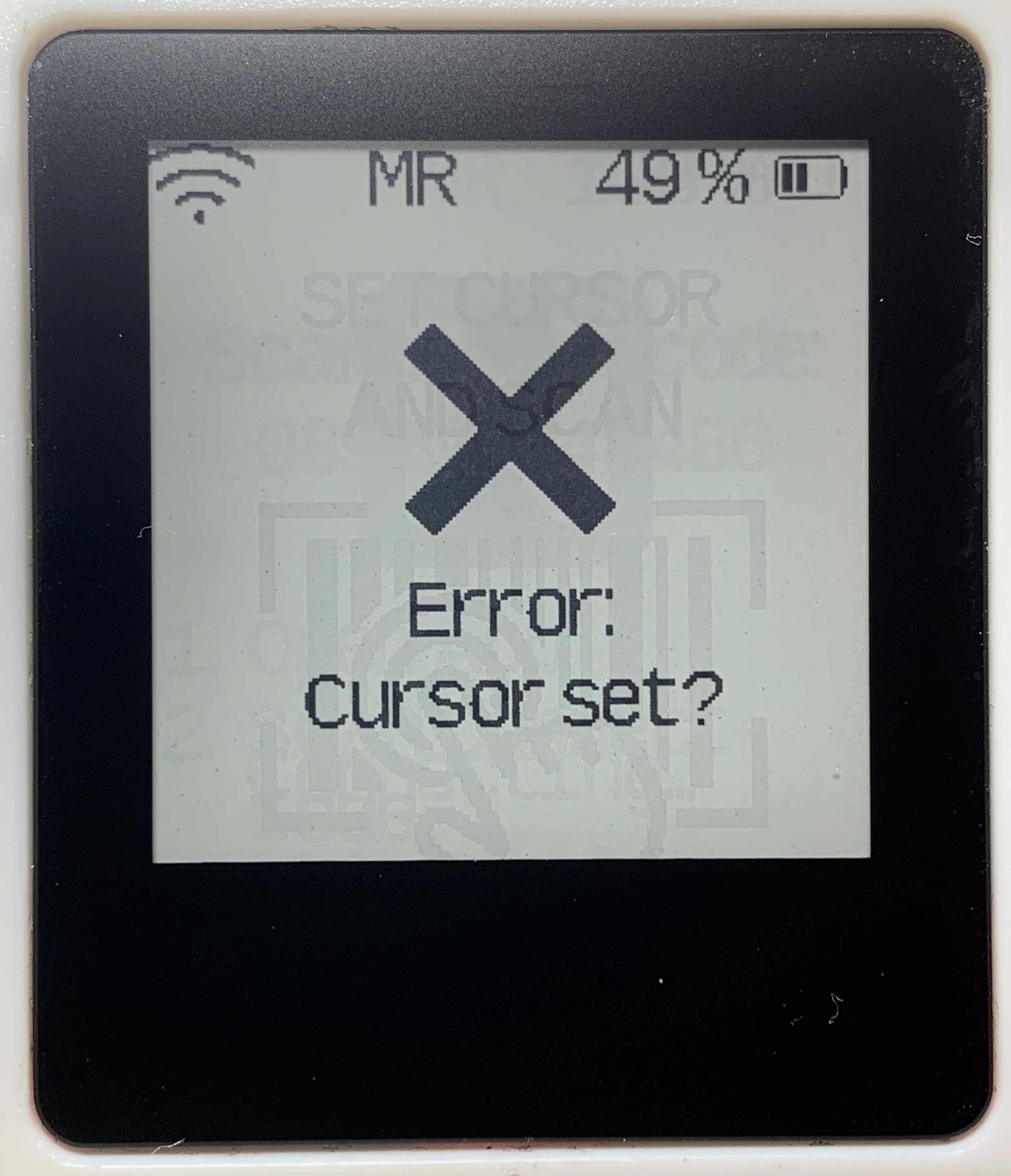 |
Scan feedback: The code could not be transferred. Select the input destination on the input device. |
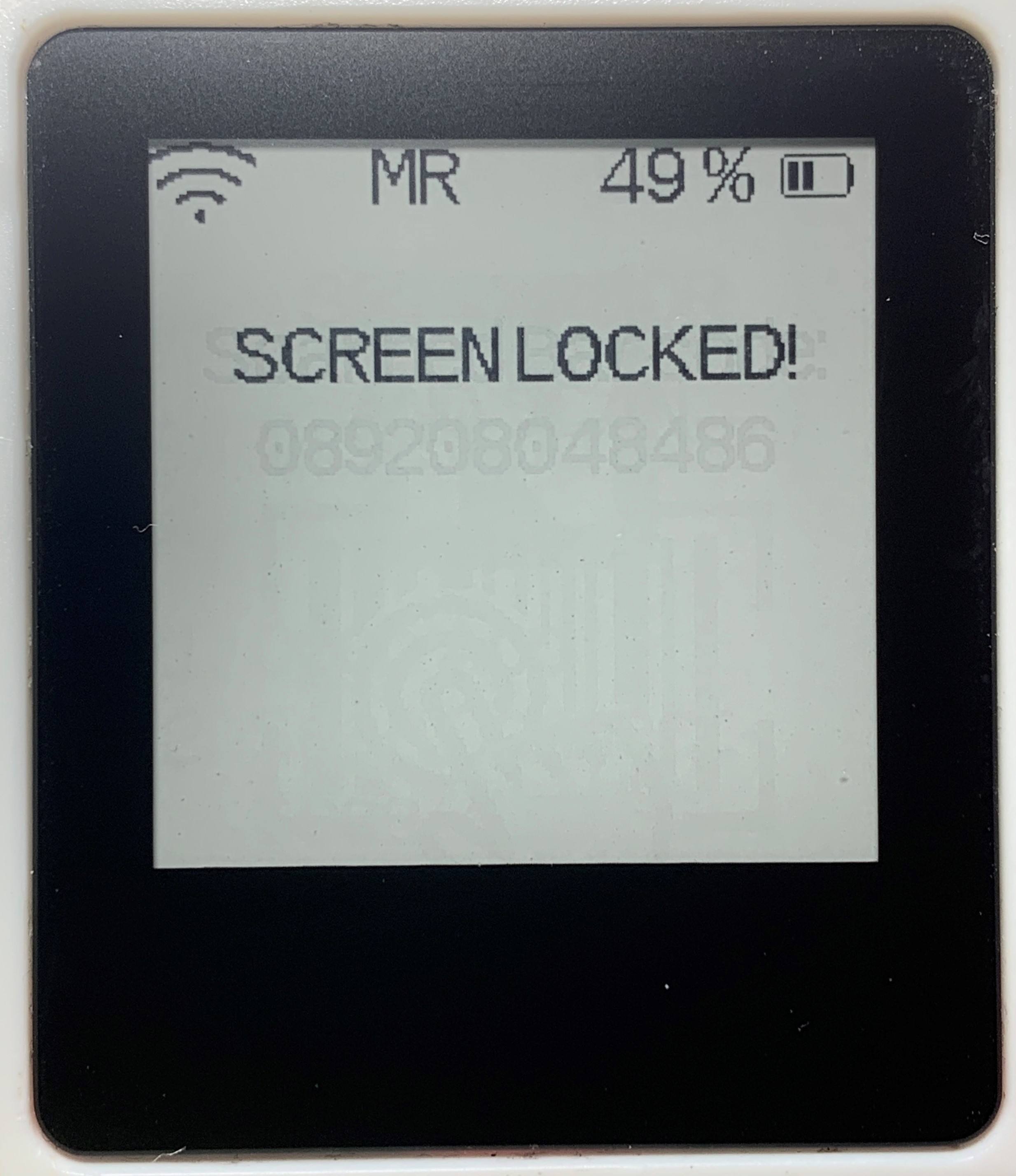 |
Scan feedback: The code could not be transferred. This occurs with the NIMMSTA App for Windows when the operating system is locked. The system must be unlocked. |
Operation
Switch on:
Hold the button for approximately 4 s until the green LED lights up. The Smart Watch HS 50 then flashes red and emits a short acoustic signal (double beep).
Switch off:
Keep holding the button. After approximately 4 s, a switch-off symbol appears on the display and a haptic signal is given (the Smart Watch HS 50 vibrates twice in quick succession).
Press the symbol on the touchscreen to confirm switch-off with an acoustic signal (double beep).
Scanning:
Press the button or touchscreen. Scan triggering can be configured in the decoder board settings.
Smart Watch HS 50 LED description
The LED colors described below may appear on the LED side of the Smart Watch HS 50 during operation.
The LED colors during charging are described in the "Charge internal battery" section.
| Color on LED side | Event |
|---|---|
| Normal operation | |
| green | Switch on – device starts up |
| blue | Connected – goes out after 20 s |
| flashing red | Not connected |
| Scanning | |
| green | Barcode successfully scanned – goes out after 1 s |
| red | Error – goes out after 1 s |
Smart Watch HS 50 battery charge indicator
The battery charge is displayed on the Smart Watch HS 50 as both a percentage and bars in the upper right corner of the display.
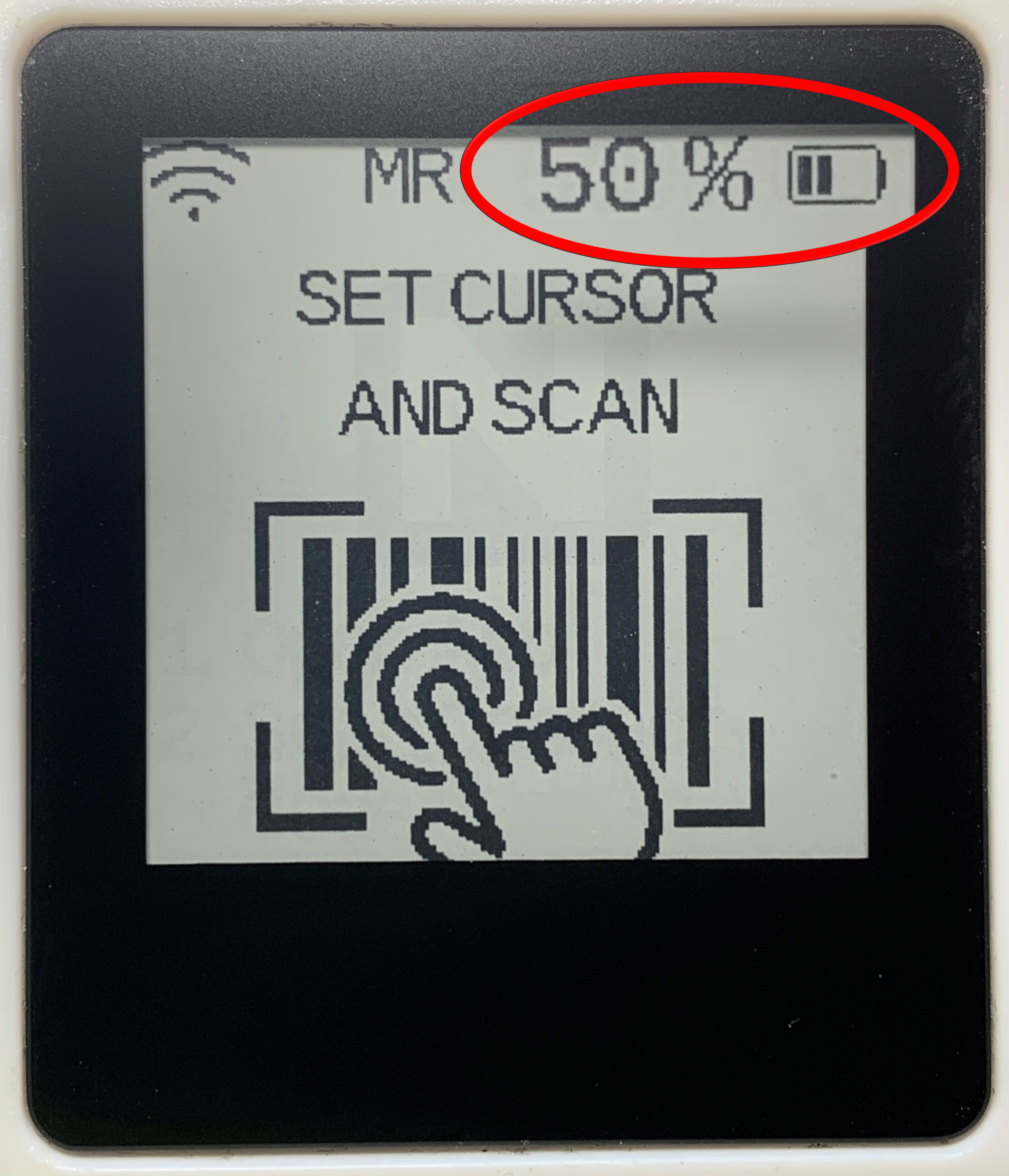
The number of bars corresponding to the battery charge percentage is shown in the table below.
| Number of bars | Battery charge in percent |
|---|---|
| 4 bars | ≥ 90 % |
| 3 bars | ≥ 65 % |
| 2 bars | ≥ 40 % |
| 1 bar | ≥ 15 % |
| 0.5 bars | ≥ 5 % |
| 0 bars | ≥ 2 % |
Call service screen
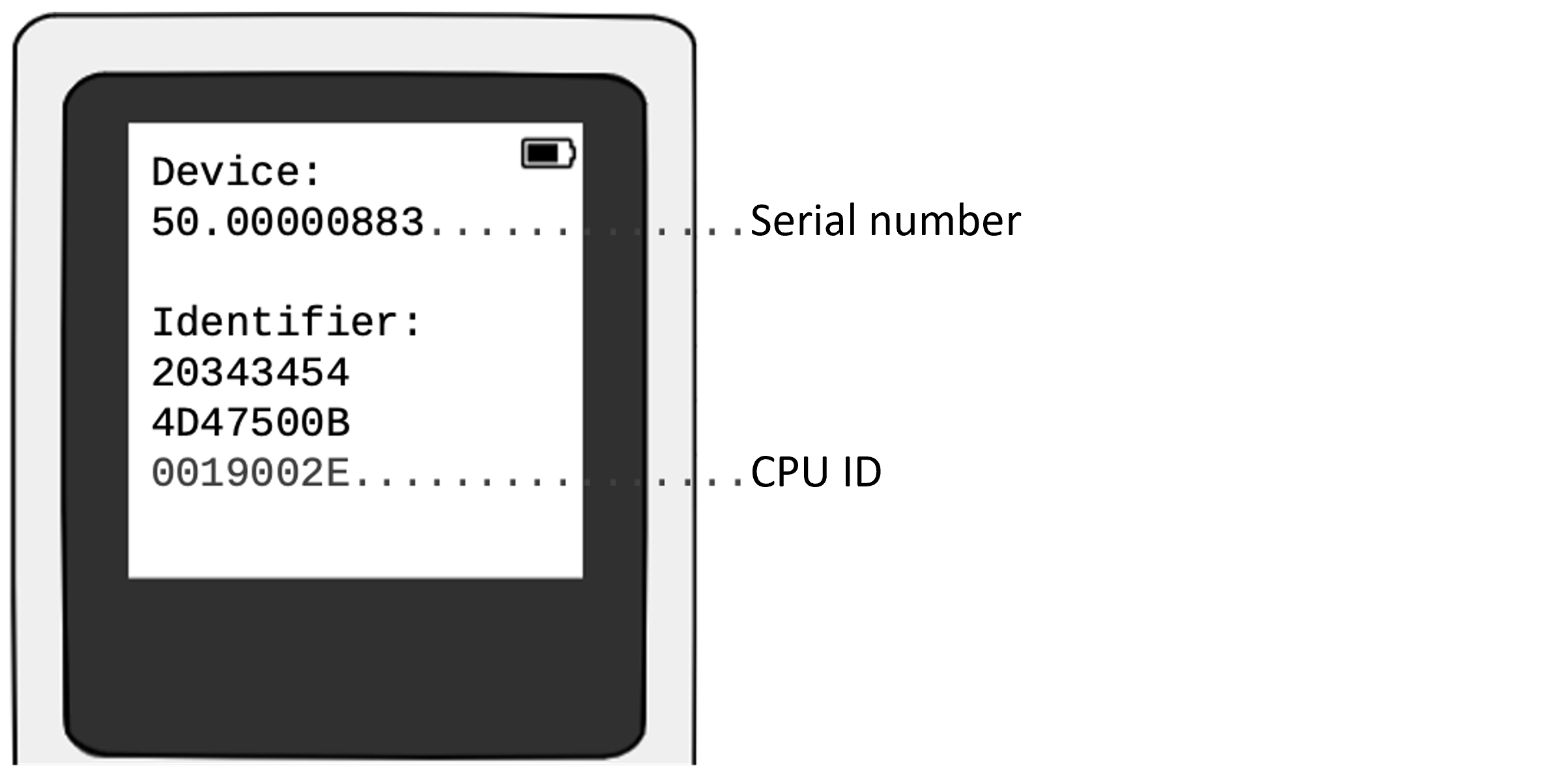
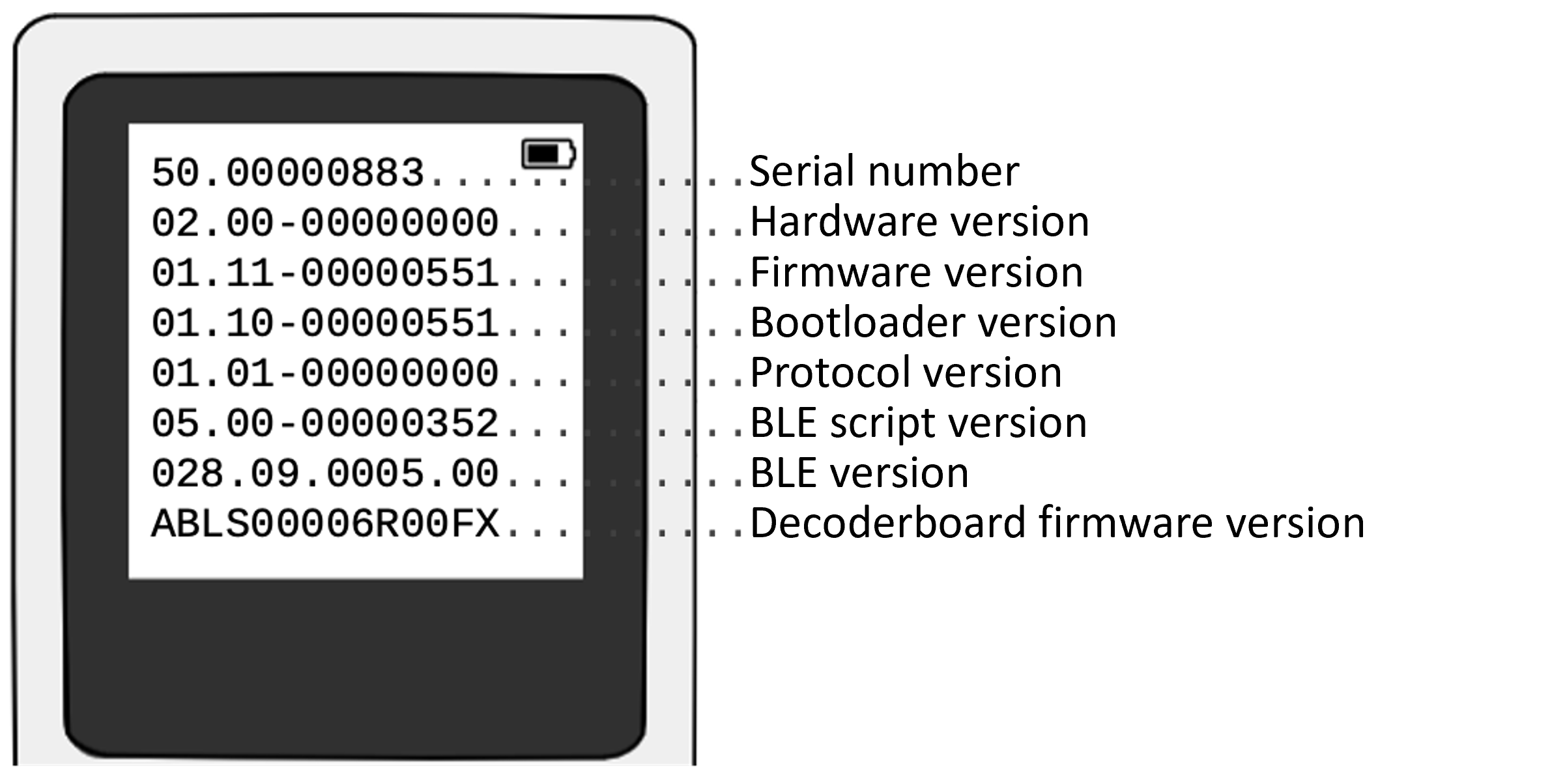
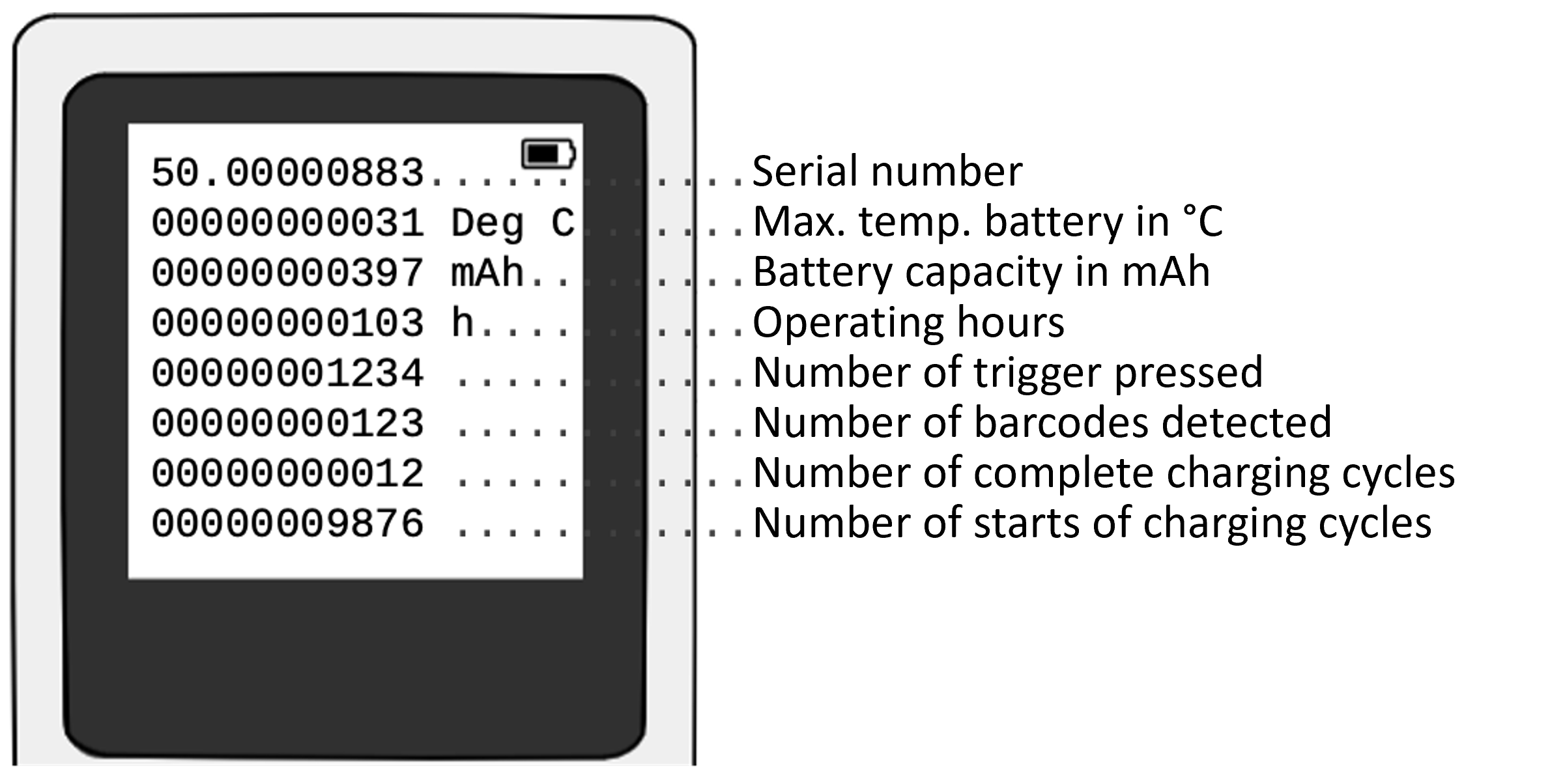
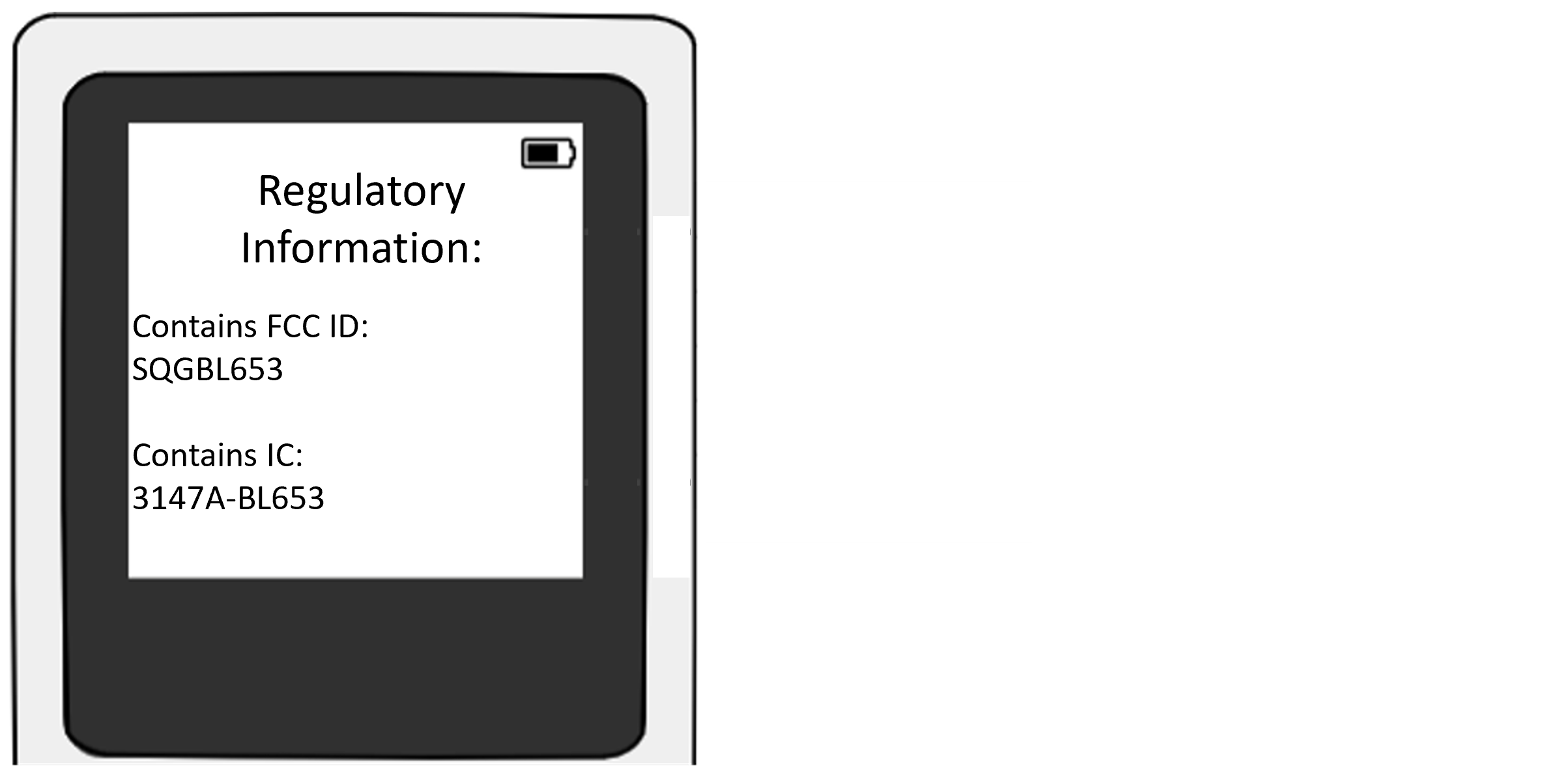
Follow these steps to access the Smart Watch HS 50 service screen and obtain further device information. The screen can also be accessed when the Smart Watch HS 50 is not connected to the target device.
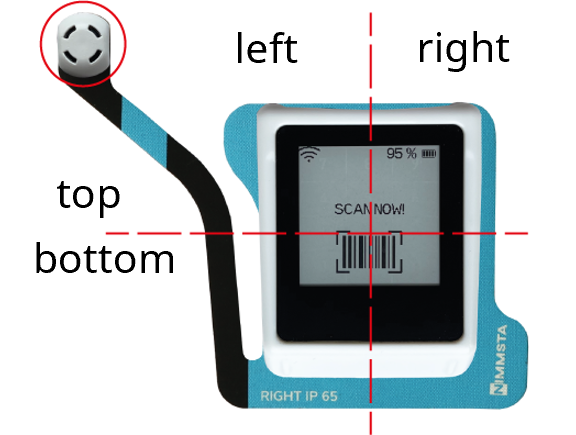 |
1. Touch the right, left, top or bottom side of the touchscreen with two fingers, depending on the desired service screen. 2. Switch off the Smart Watch HS 50 by pressing the trigger while touching the touchscreen. 3. The service screen loads. |
The service screen is exited at the next restart.
| Service screen top |
|---|
 |
| Service screen left |
|---|
 |
| Service screen right |
|---|
 |
| Service screen top left / bottom right |
|---|
 |
Hard Reset
If the Smart Watch HS 50 no longer responds to input, a Hard Reset can be performed. A Hard Reset disconnects all connections and restarts the Smart Watch HS 50.
- Press the button for approximately 35 s until the green LED at the front right of the Smart Watch HS 50 lights up.
- Release the button.
The Hard Reset is performed.
The Hard Reset is complete after the display refreshes.
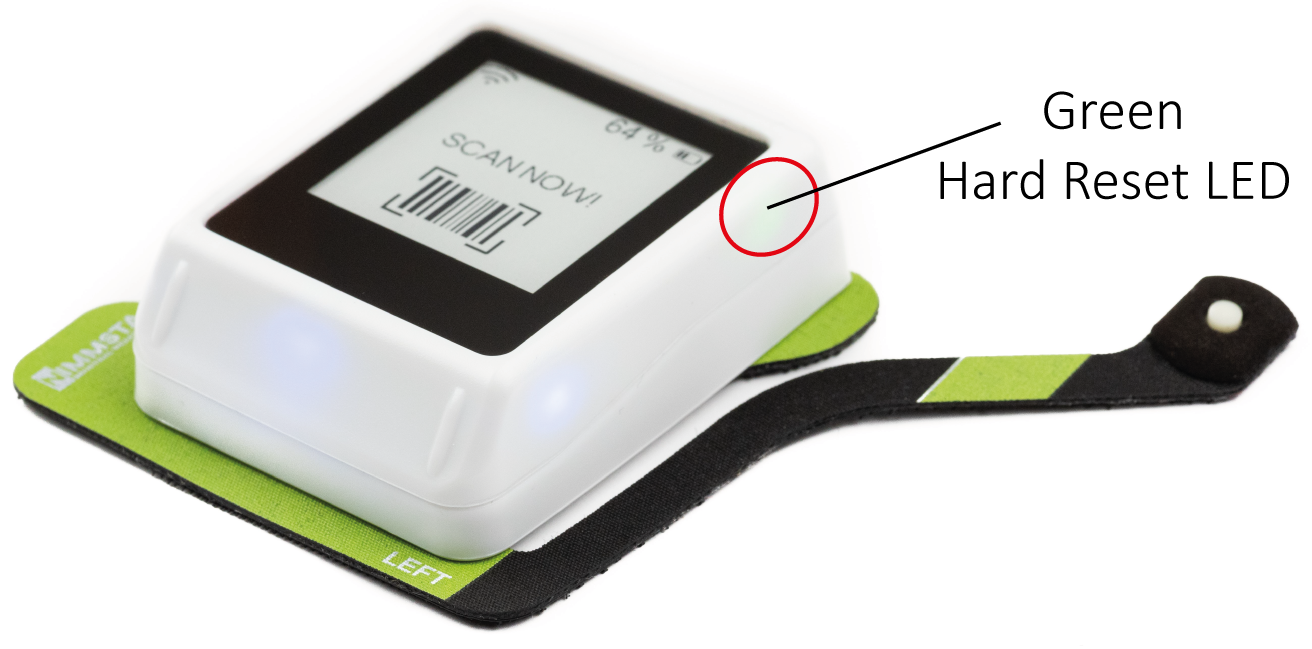

|
The green LED at the front right of the housing only lights up during a Hard Reset. If the trigger is held for longer than approximately 35 s, the LEDs remain lit until the trigger is released. The Hard Reset is only performed after the trigger is released. |