Motion Loop
Motion Loop develops the Scan by Motion solution into a complete solution. It replaces the Trigger Pad and sleeve.
Components
The following components are required for use:
- Bracket
- Motion Loop
- Firmware 10 or newer
- Switch on by touch
- Selectable gestures
- App 7.5.4 or newer

|
Firmware 10 or newer must be installed before fitting the Bracket. Otherwise, the Smart Watch can no longer be switched on intuitively.
Download Firmware 10 |
Remove the Firmware 10 information sticker before fitting the Bracket.
Conversion and Bracket installation
Only a T6 Torx driver is required to replace a fitted Pad with the Bracket.
For a new Bracket installation, three M3 washers to DIN 125 and three M2x6 countersunk screws are required in addition to the T6 Torx driver.
All components are included in the conversion kit (520902 TRIGGER / CLIP PAD Conversion Kit).
A flyer and a video are available online:
Operation
- Switch on
- Touch and hold the touchscreen for 2 seconds
- Switch off
- After 2 minutes while disconnected
Gesture control
- When disconnected, "Single Tap" is used as the default gesture
- When connected, the gesture preset in the app or workflow is applied
- The workflow takes precedence, i.e. it overrides the configuration in the app
- If an app version older than 7.5.4 is installed, the default gesture remains active and cannot be configured
- A customer CoreLib integration behaves in the same way as an app version older than 7.5.4; the customer can use the default gesture immediately
New features from app version 7.5.4
From app version 7.5.4, scan modes and Motion can be selected.

|
Not all gestures work with every scan mode. The app displays the permitted options during configuration. |
To open the corresponding screen:
Select "More" on the main screen, then select "Device Settings"
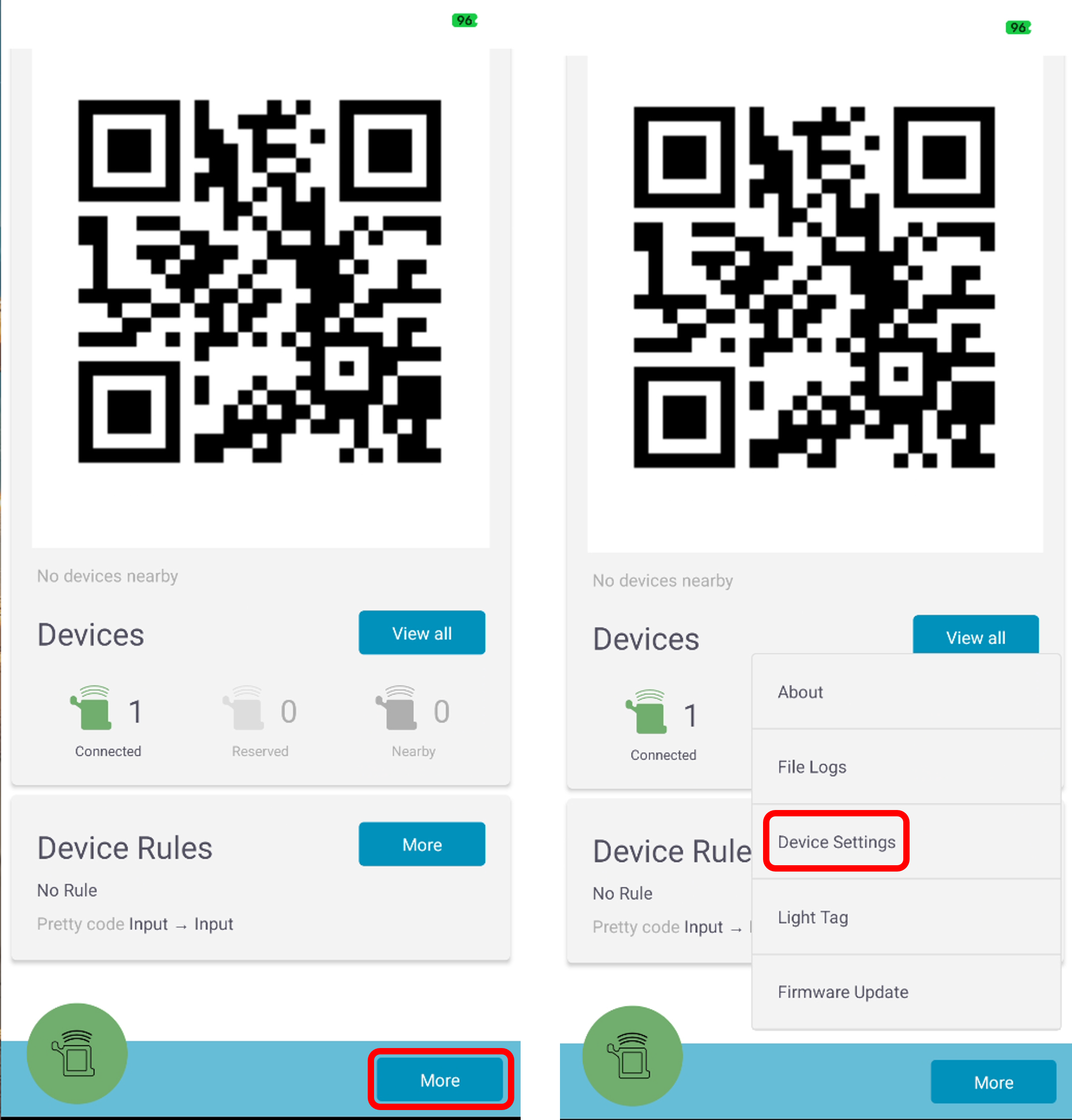
From app version 7.5.4, the "Operational Mode" and "Gesture Selection" settings can be changed in this menu.
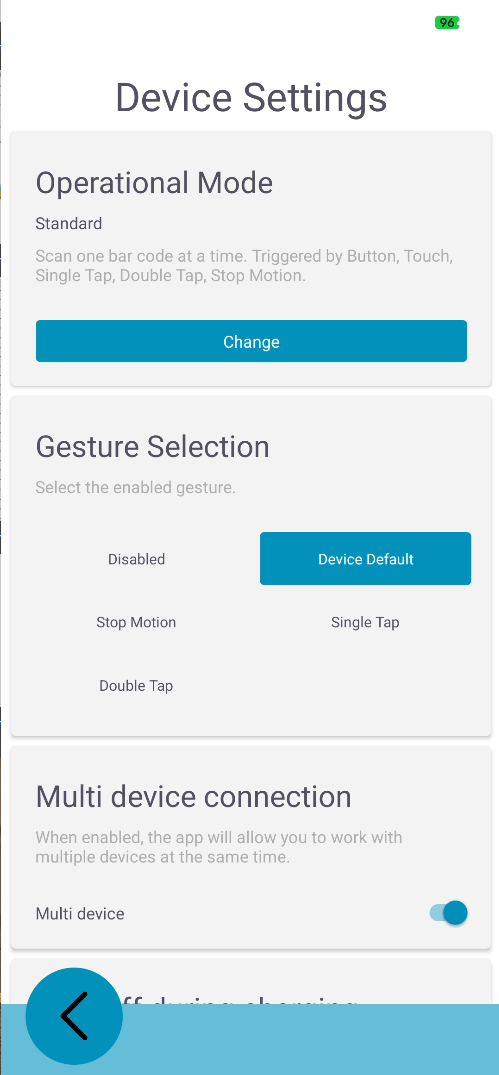
In the "Operational Mode" setting, press the "Change" button to change the scan modes. An additional menu, "with trigger methods", is displayed to configure how scanning is triggered.
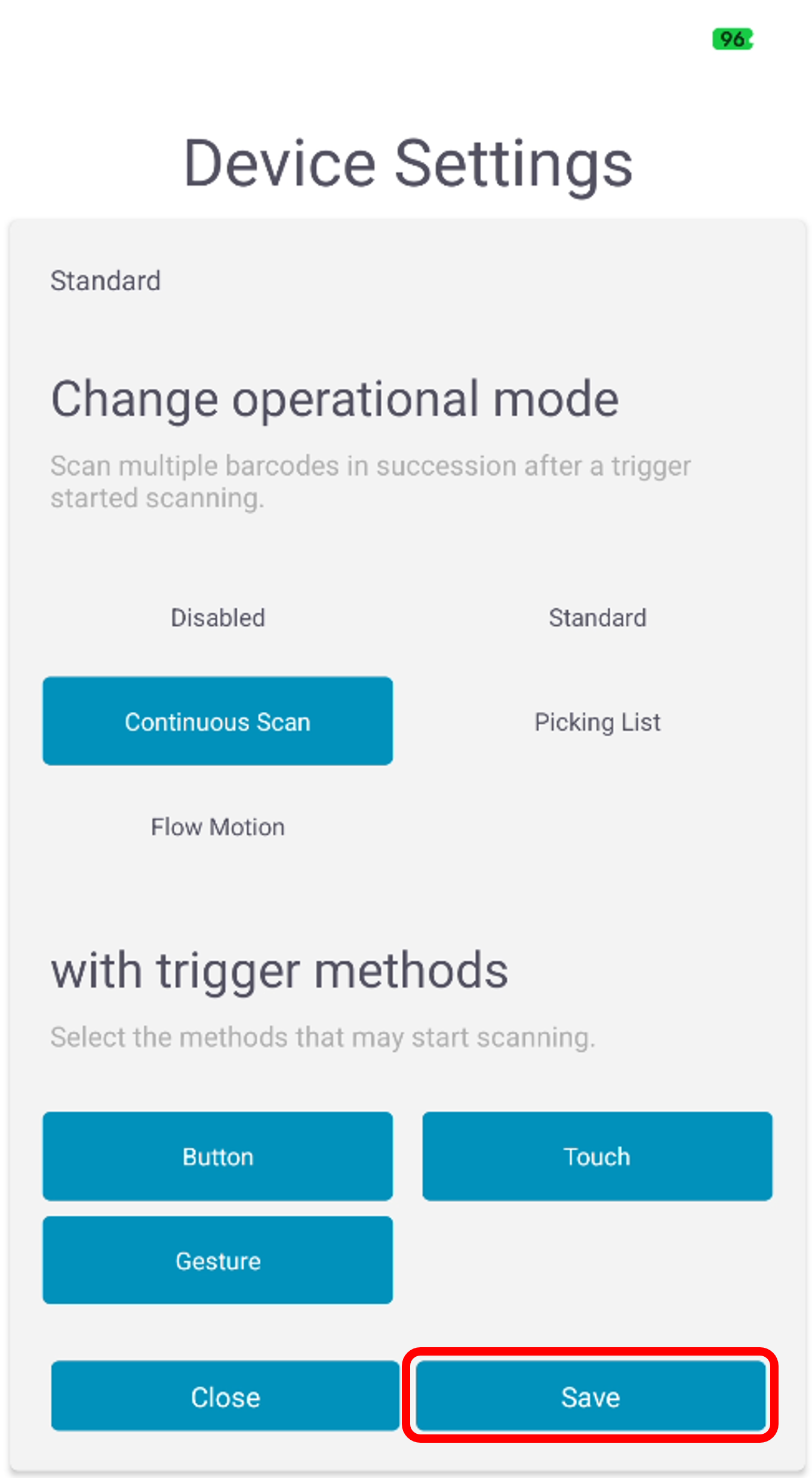
Confirm the change with “Save” or discard it with "Close".
The following scan trigger methods and scan modes are available:
- Scan trigger method
- Trigger Button
- Touch
- Motion
- Single Tap
- Double Tap
- Stop Motion
- Scan modes
- Normal Scan
- Continuous Scan
- Picklist Mode
|
|
For the "Single Tap" and "Stop Motion" gestures, the angle is limited to approximately ±35°. |
Hard Reset
A Hard Reset is triggered by connecting the two screw mounting points 1 and 2 with an electrically conductive object for longer than 35 seconds.
The illustration below shows the Smart Watch with the Bracket fitted, resting on its display. The screw mounting points to be connected are connected with the NIMMSTA Reset Clip.
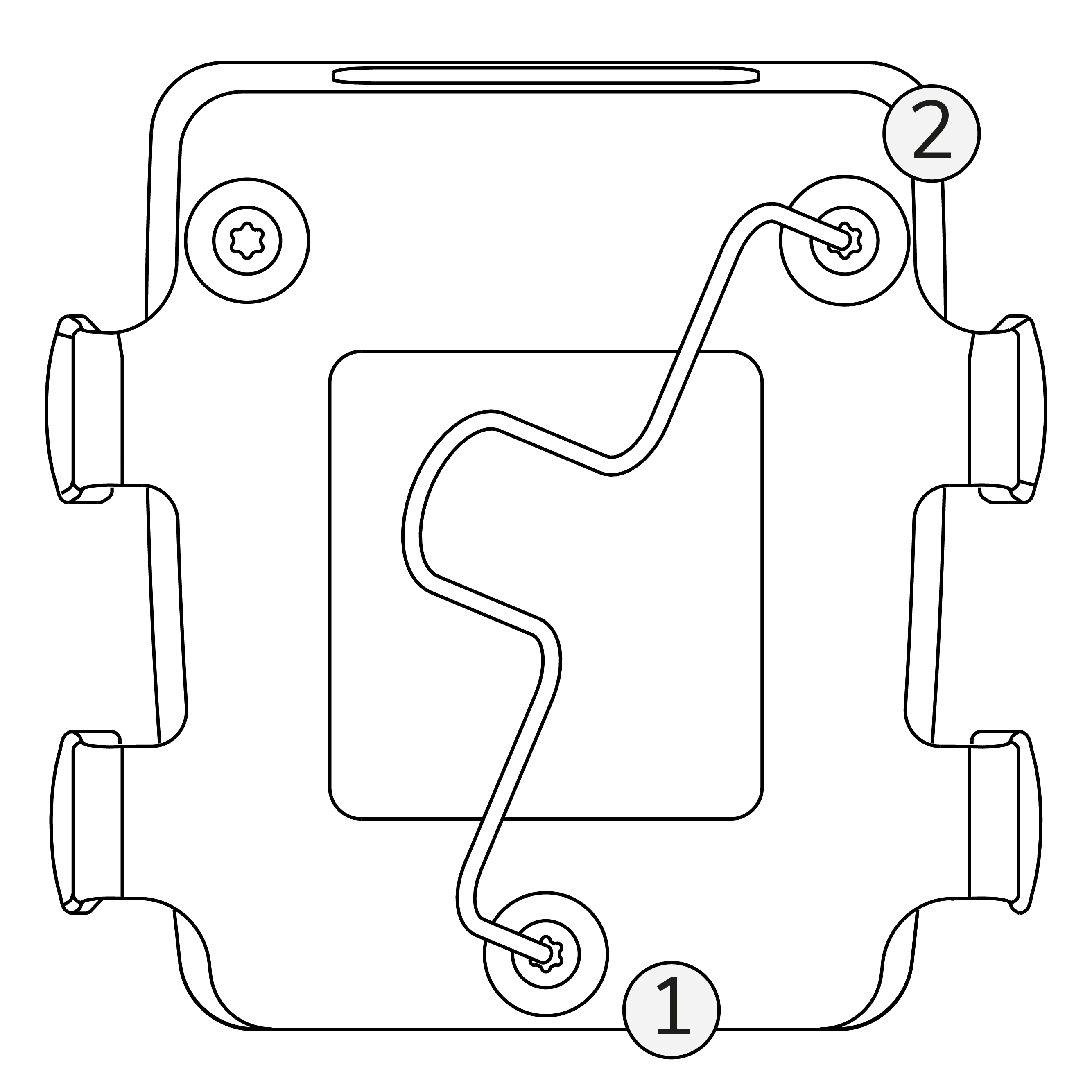
As before, an LED lights up to indicate that the Hard Reset has been reached.
Service Screen
The Service Screens can be accessed during power-on. To do this, touch and hold the display with two fingers at the designated positions while switching on. The individual Service Screens are described in the manual:
Link to the Service Screen descriptions
Exit the Service Screen by switching on the Smart Watch (see Operation) or leaving it unused for an extended period.
|
|
From Firmware 10, the battery life while switched off is approximately two months, which is shorter than before. |